This section will help you to arrange home page and other pages of your site. This will also guide to you as how to setup WordPress Menus, Create a Slider/Banner, Create Home Page, Use of Page Templates and insertion of shortcode in pages.
Sweet Delights Bakery Pro
Introduction
Thank you for using our sweet-delights-bakery-pro WordPress Theme. We are very glad that you have chosen sweet-delights-bakery-pro WordPress theme for your website.
sweet-delights-bakery-pro theme is a clean, super flexible and fully responsive WordPress Theme.
This document written very carefully by keeping mind set that it should be easy understand for Beginner to Advance user or developers. We have divided this document in 3 main section.
1) Getting Started : This section will very help full for Quick start and understand how setup theme
2) Detailed Document : This section explains every thing about theme with every settings.
3) Other : This section provides information about miscellaneous item like theme features etc.
If you have any query that is beyond the scope of document, please feel free to contact us at support@luzuk.com
- Email: support@luzuk.com
We offer theme customization. Get in touch for a quote.
Quick Search Tip: Access your browser search with keyboard shortcut "Crtl+F" (Windows) or "CD+F" (OSX) for instant results.
Installation
Step One
To install this theme you must have a working version of WordPress already installed. For information regarding to install the WordPress platform, please see the WordPress Codex https://codex.wordpress.org/Installing_WordPress
1. Installation Via WordPress Admin area
- Step 1. Log into your WordPress admin area.
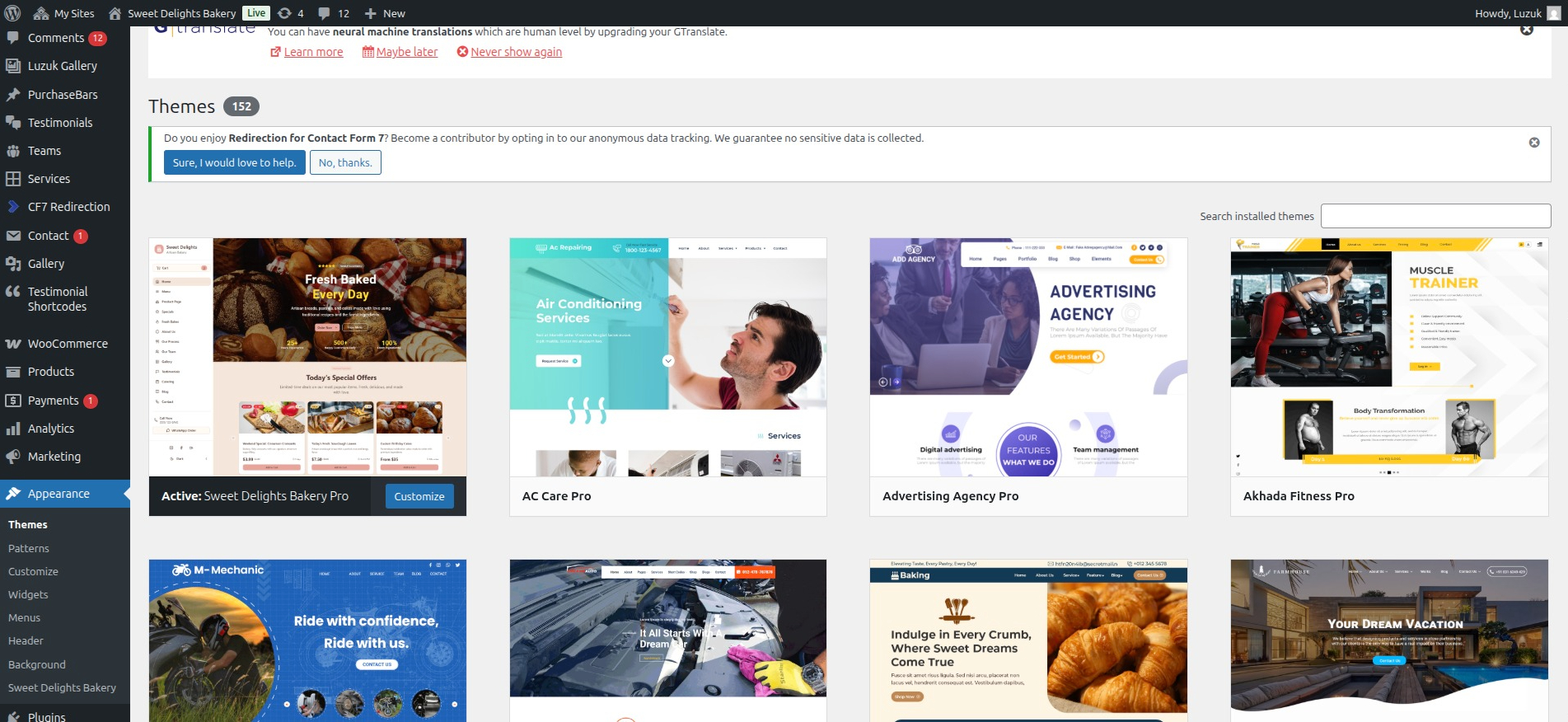
- Step 2. Go to Dashboard >> Appearance >> Themes.
- Step 3. Click on Add New Theme button at top.
- Step 4. Now, Hit Upload Theme button at top and upload.
- Step 5. Click on Activate once upload has finished.
Step Two
2. Installation Using FTP
- Step 1. Download sweet-delights-bakery-pro.zip file from your My Account luzuk.
- Step 2. Extract Zip file.
- Step 3. Using your FTP program, upload the non-zipped theme folder into the "/wp-content/themes/" folder on your server.
- Step 4. Go to Dashboard » Appearance » Themes and find sweet-delights-bakery-pro theme from list
- Step 5. Click on Activate to Moneymind Finance Advisor Pro theme.
Detail Document
Setting Up Home Page
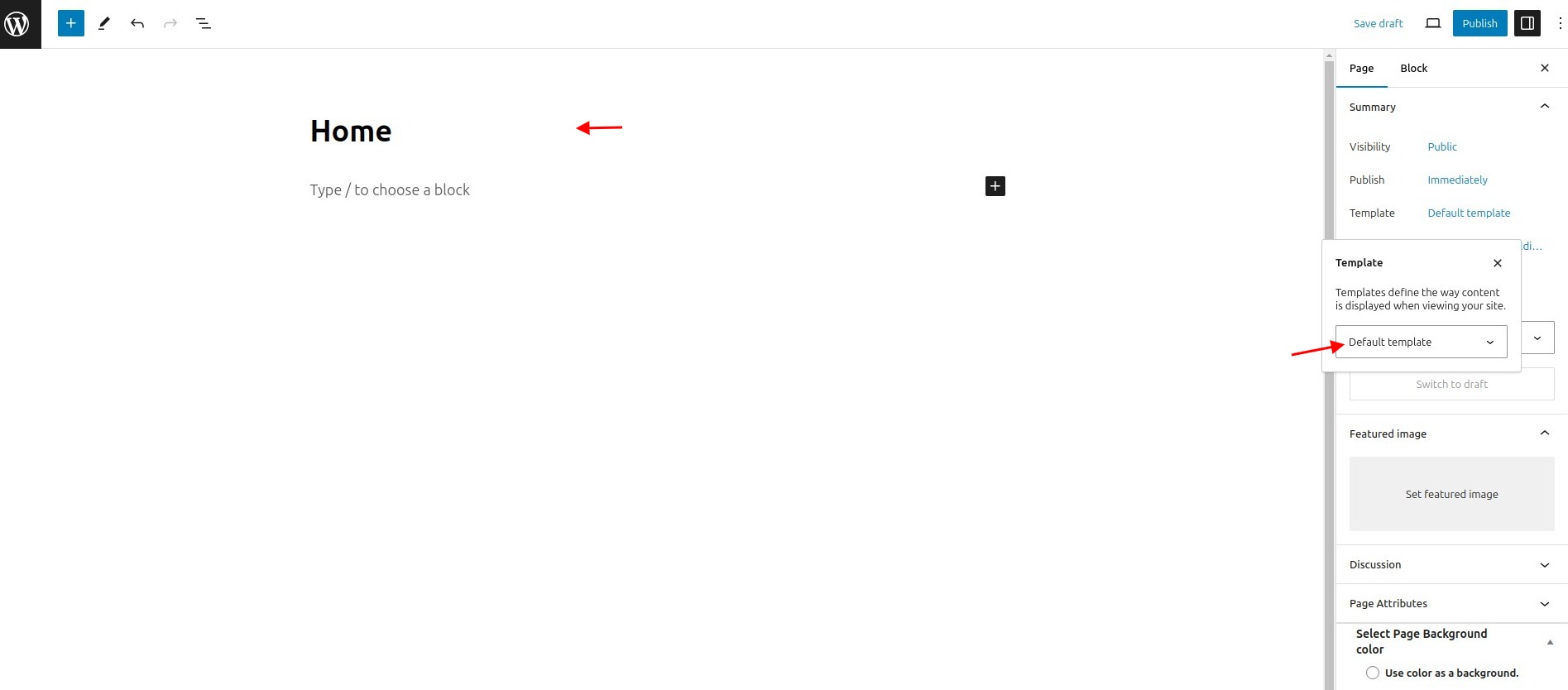
- Step 1: Go to Dashboard >> Pages >> Add New, enter page name and select template as Home Page Template from Page Attribute as shown in below image
- Step 2: Publish this page
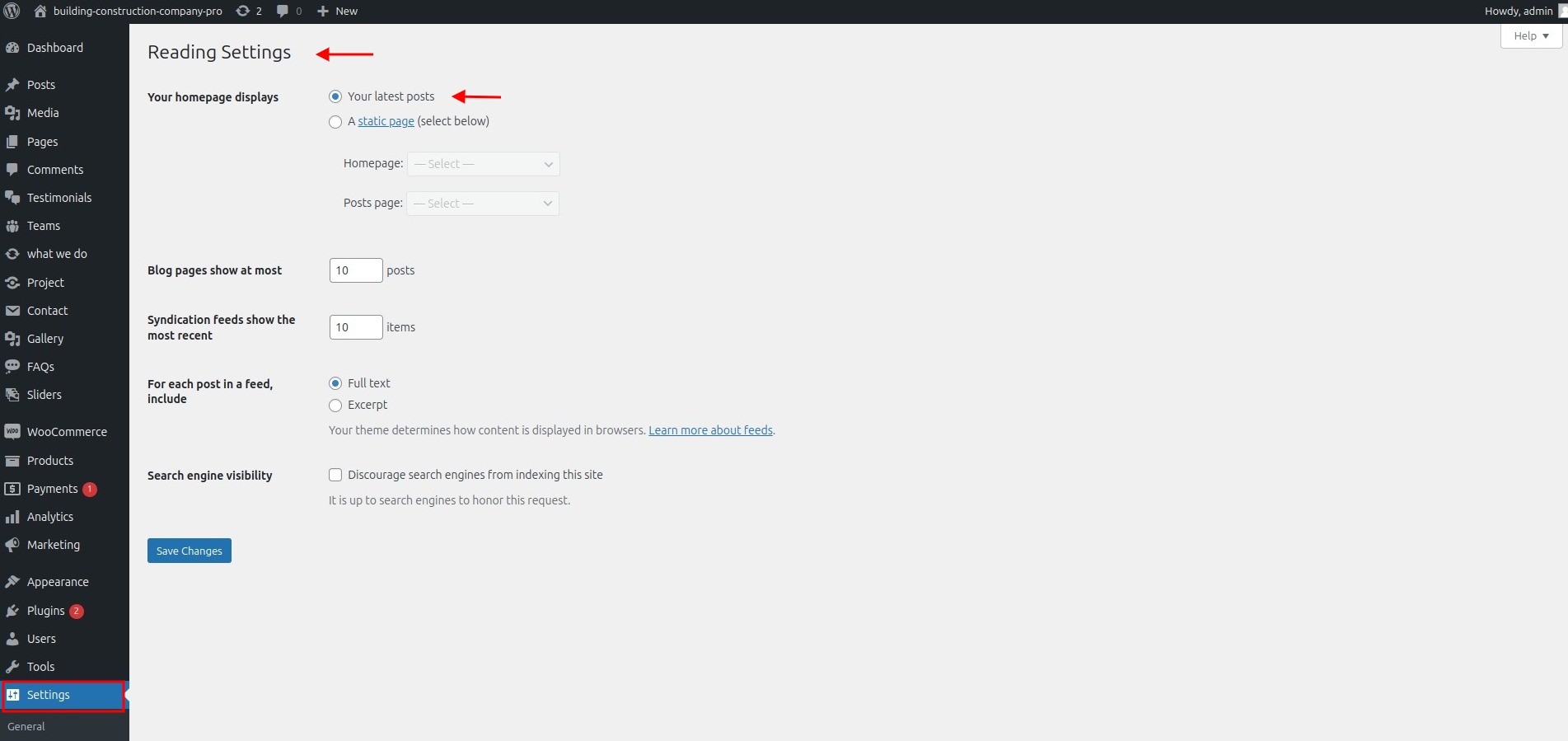
- Step 3: Go to Dashboard >> Settings >> Reading, select home page as a front page
Header Setting
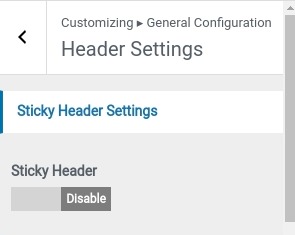
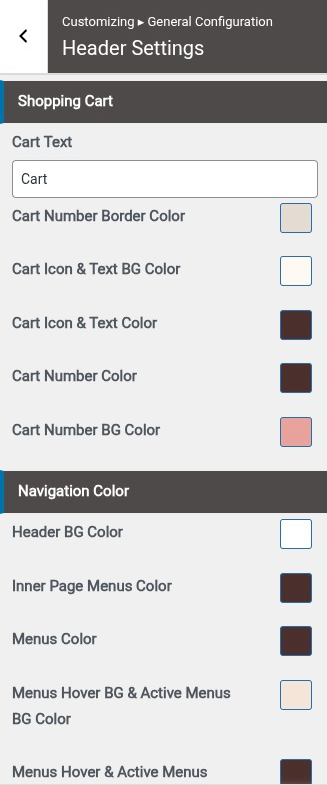
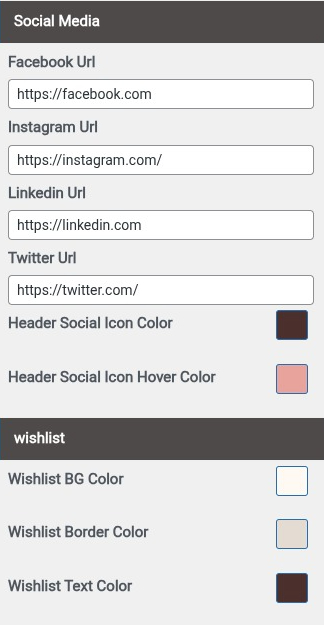
- Step 1. Go to Dashboard >> Appearance >> Customize >> General Configuration >> Header Settings
- 1. Set Sticky Header
- 2. Select Navigation colors
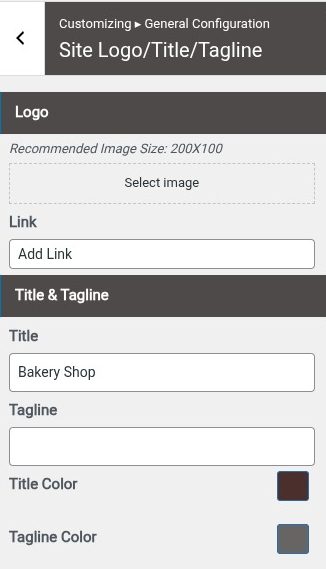
- Step 1. Go to Dashboard >> Appearance >> Customize >> General Configuration >> Site logo/title/tagline
- a. Select Logo
- b. Add Site Title
- c. Add Site Tagline
- d. Set Logo Max Width
- e. Select Tagline Color
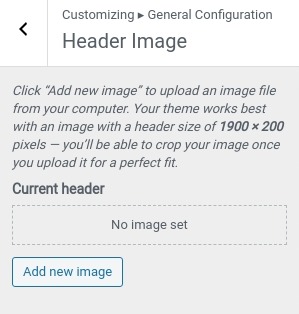
- Step 3. Go to Dashboard >> Appearance >> Customize >> General Configuration >> Header Image
- a. Select Header Image
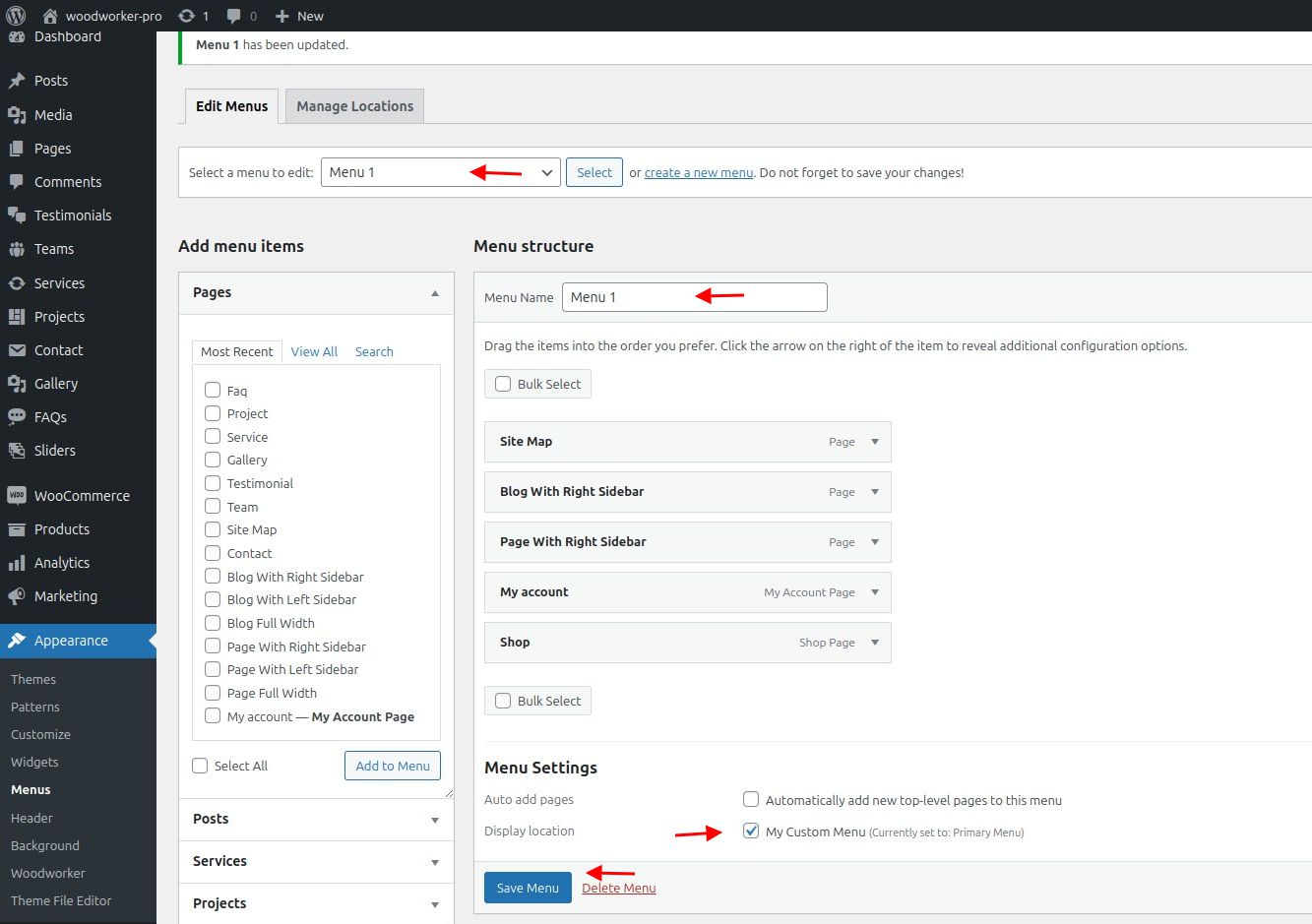
- Step 4. Go to Dashboard >> Appearance >> Menus.
- Step 5. Click on create a new menu as show in below image.
- Step 6. Enter menu name and click on Create Menu as shown in below image.

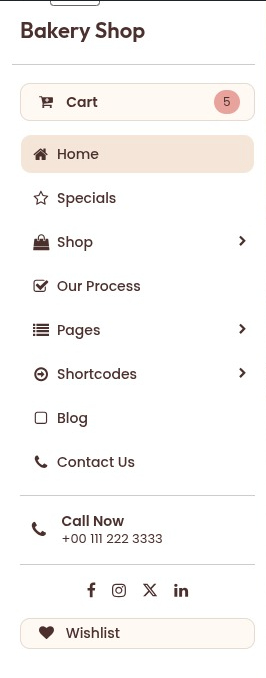
Final display of Header
Set Banner Section
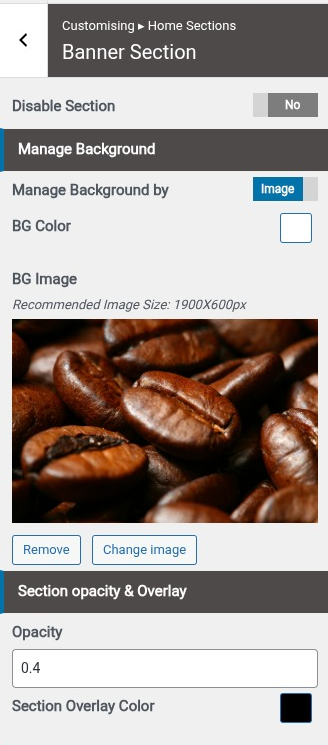
- Step1. Go to Dashboard >> Appearance >> Customize >> Home section >> Banner Section Step2.
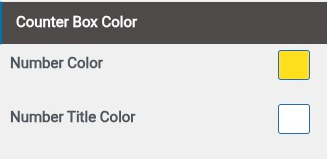
- (a) Select Background Image and Background Color
- (b) Set Section Padding
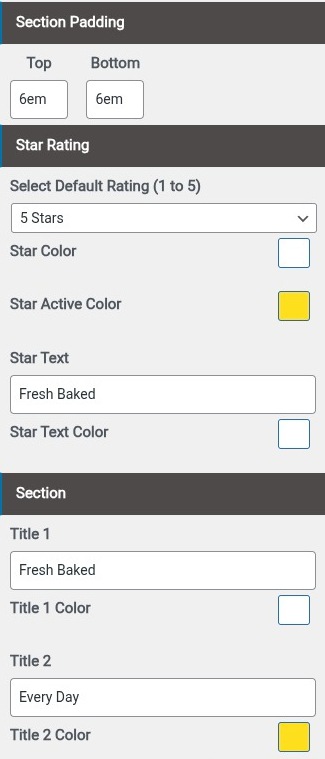
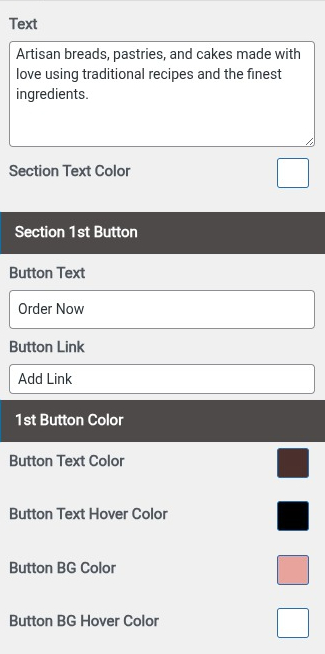
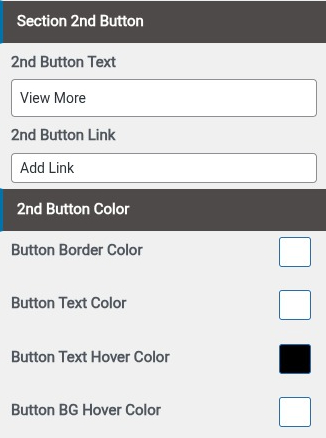
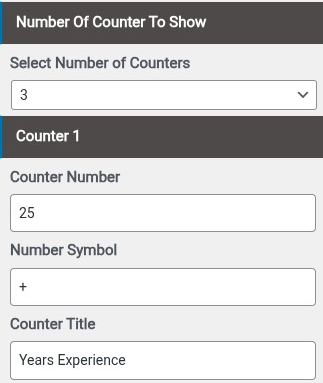
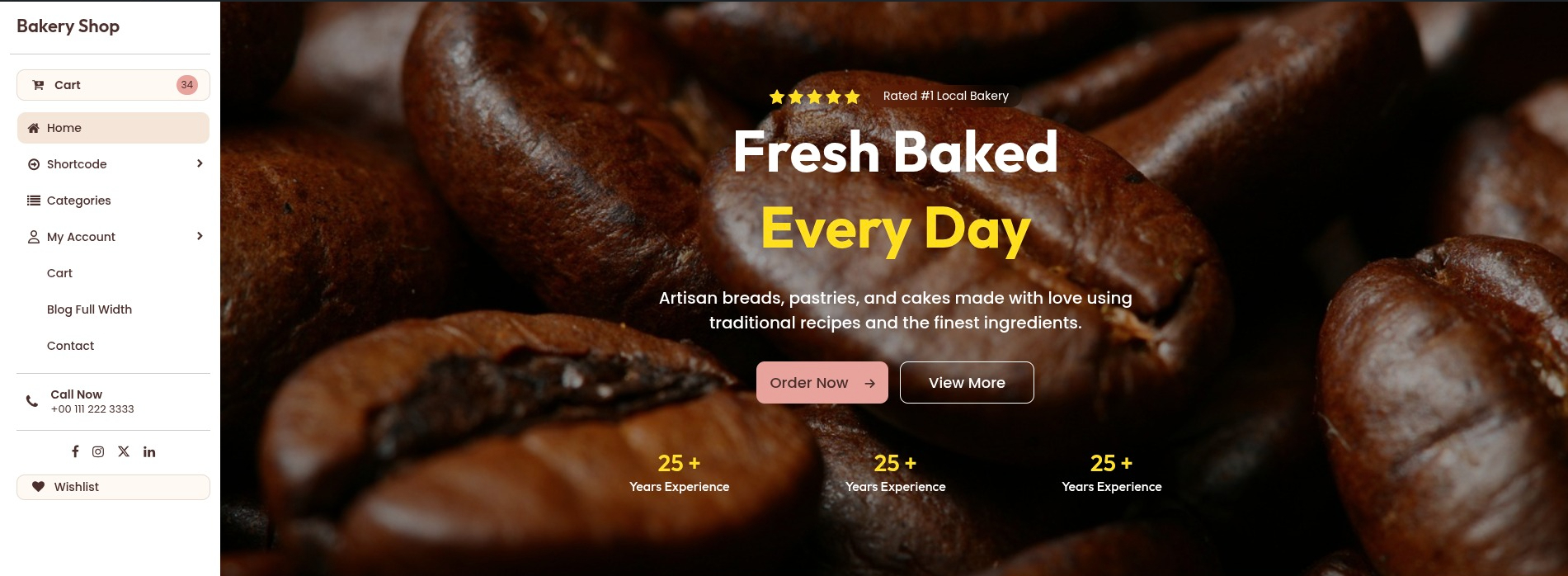
Final Display Of Banner Section
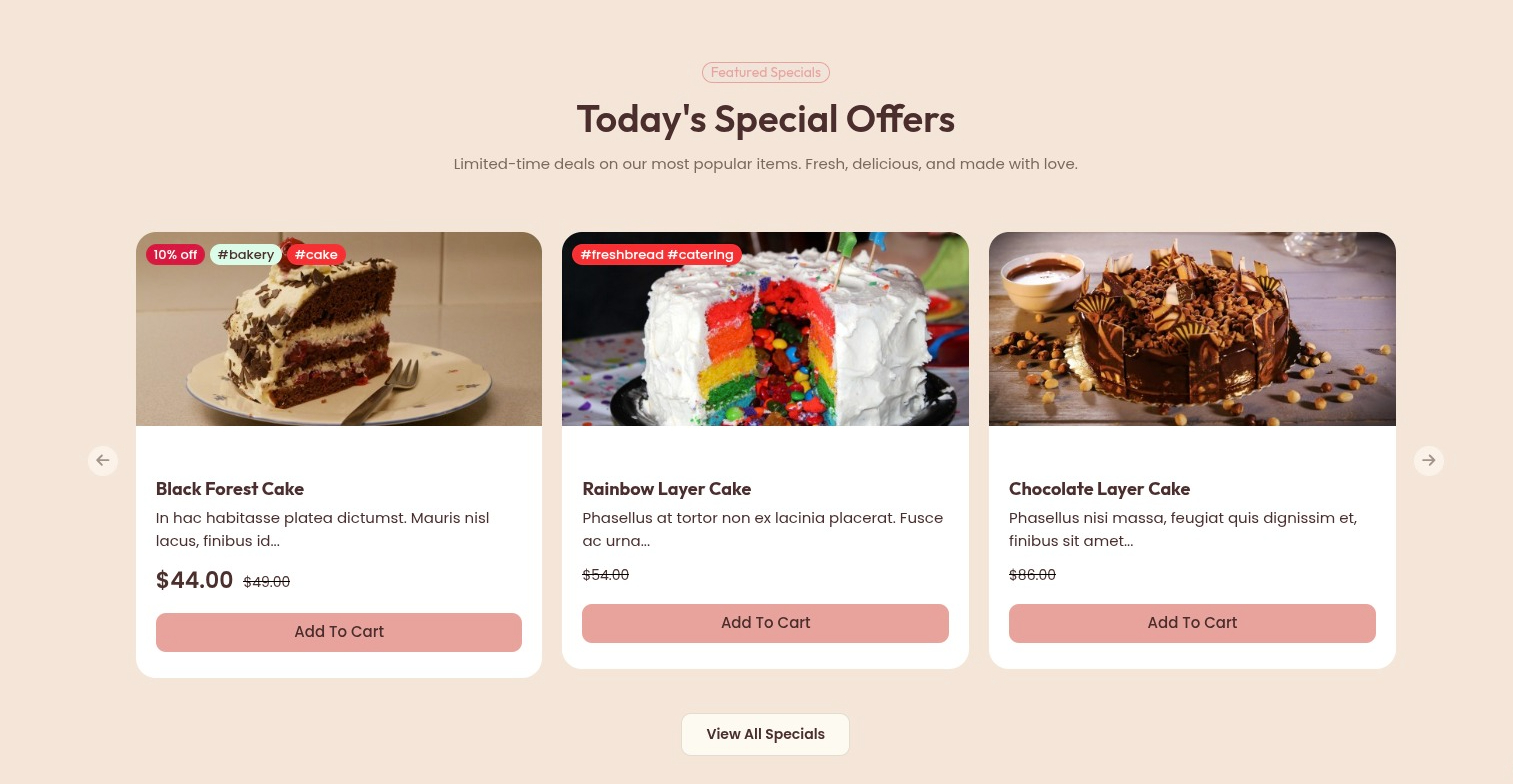
Set New Arrival Section
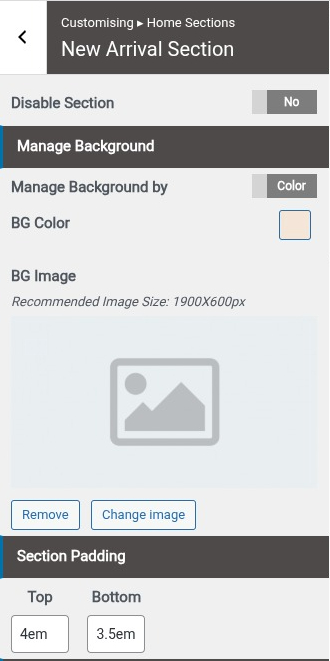
- Step1. Go to Dashboard >> Appearance >> Customize >> Home section >> New Arrival Section Step2.
- (a) Select Background image or Background Color
- Step 3.
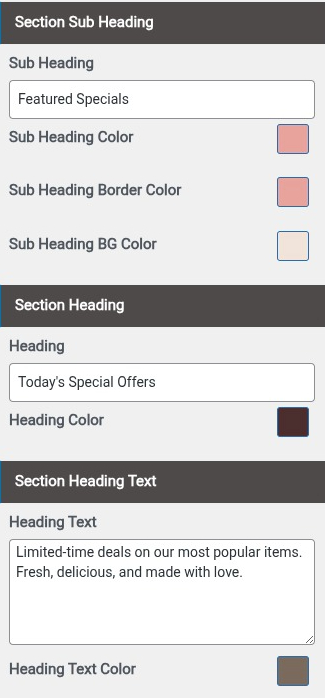
- (a) Use Woocommerce Plugin
- (b) Add Product
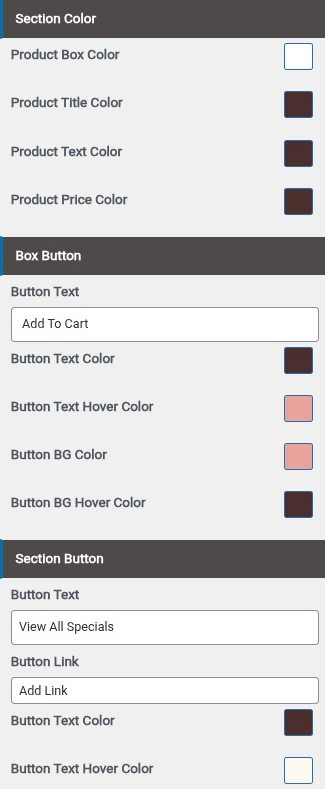
Final Display Of New Arrival Section
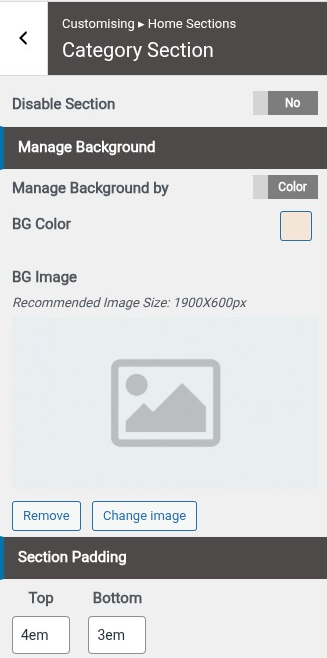
Set Category Section
- Step1. Go to Dashboard >> Appearance >> Customize >> Home section >> Category Section Step2.
- (a) Select Background image or Background Color
- Step 3.
- (a) Use Woocommerce Plugin
- (b) Add Product & Category
- (c) Add Heading , Sub Heading & Text
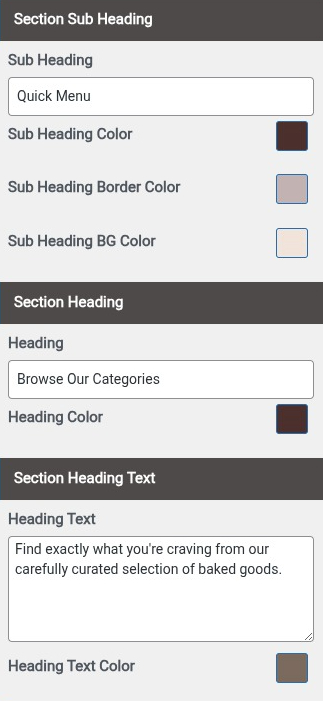
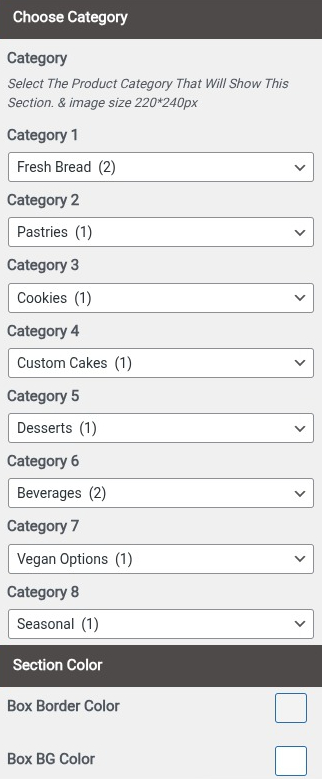
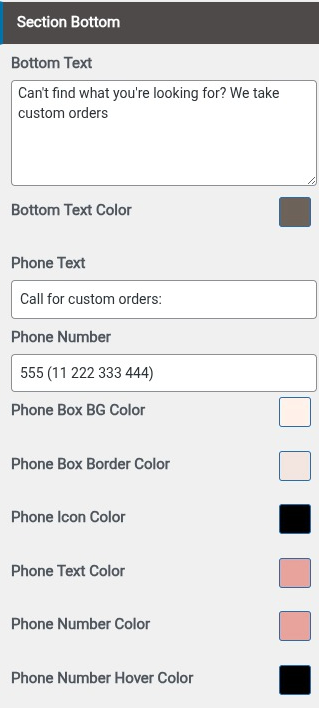
Final Display Of Category Section

Set Product Popular Section
- Step1. Go to Dashboard >> Appearance >> Customize >> Home section >> Product Popular Section Step2.
- (a) Select Background image or Background Color
- Step 3.
- (a) Use Woocommerce Plugin
- (b) Add Product
- (c) Add Heading , Sub Heading & Text
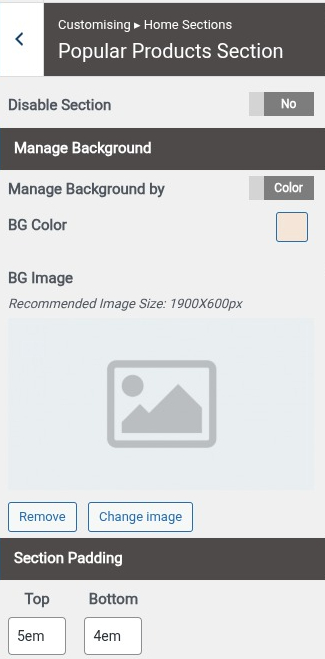
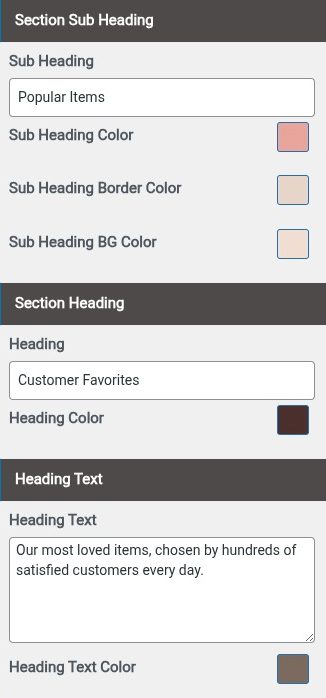
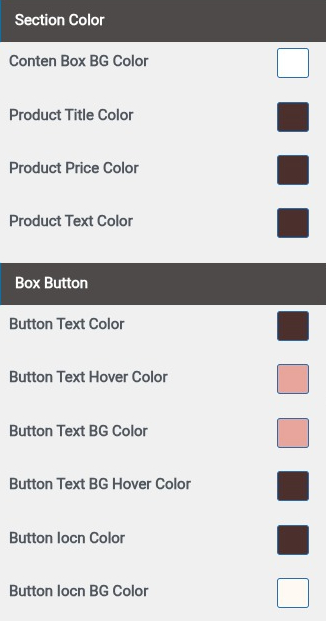
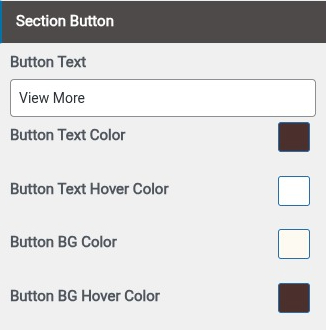
Final Display Of Product Popular Section
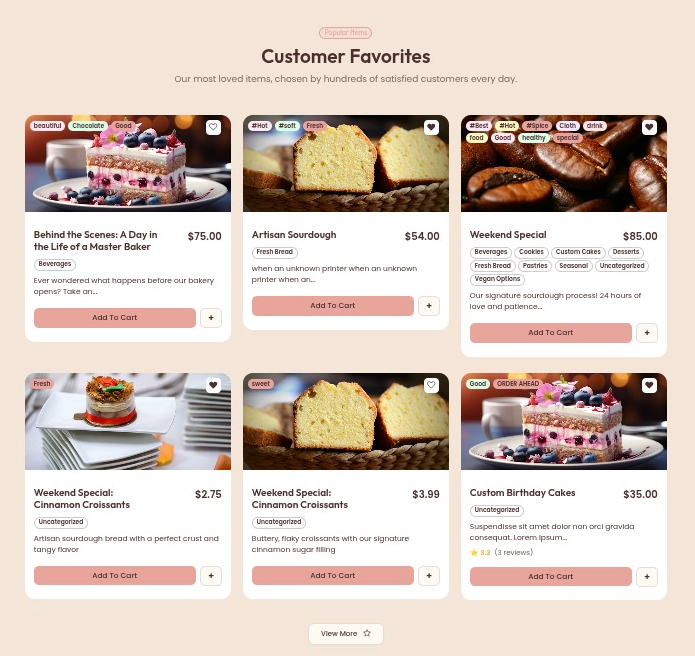
Set Best Selling Section
- Step1. Go to Dashboard >> Appearance >> Customize >> Home section >> Best Selling Section Step2.
- (a) Select Background image or Background Color
- Step 3.
- (a) Use Woocommerce Plugin
- (b) Add Product
- (c) Add Heading , Sub Heading & Text
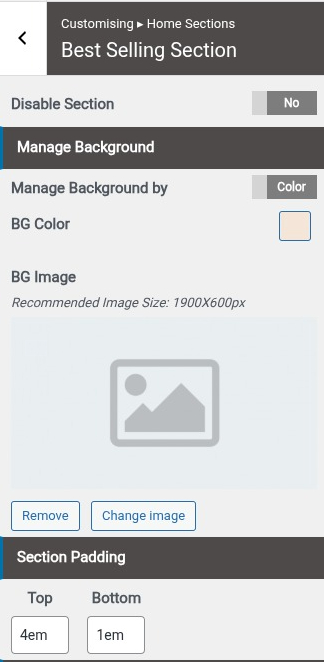
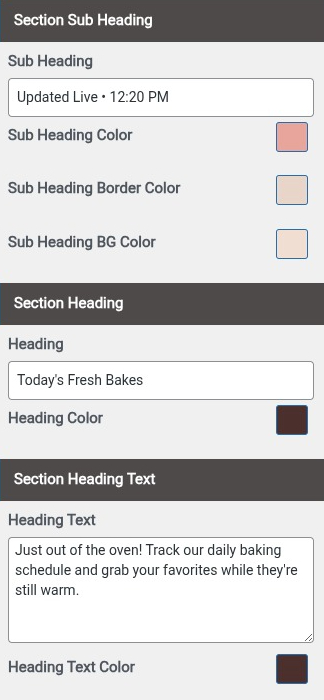
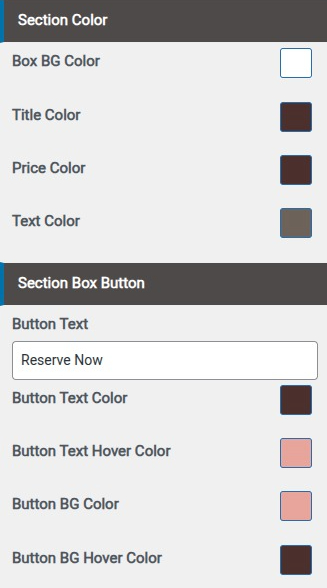
Final Display Of Best Selling Section

Set Facility Section
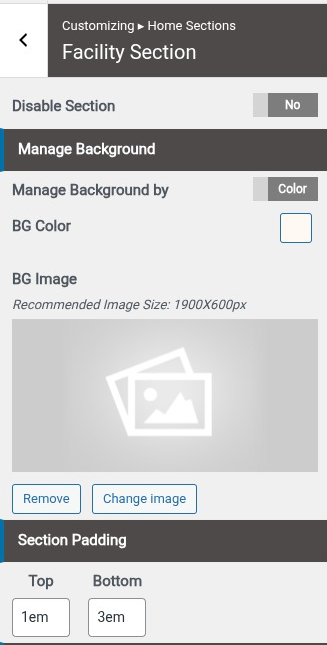
- Step 1. Go to Dashboard >> Appearance >> Customize >> Home section >> Facility Section Step 2.
- (a) Set Disable/Enable
- (b) Set Section Padding
- (c) Select Background Image and Background Color
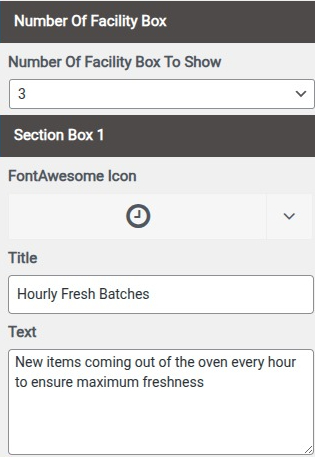
- (a) Select Number Of Box To Show
- (b) Select Facility Icon
- (c) Add Title
- (a)Select Colors
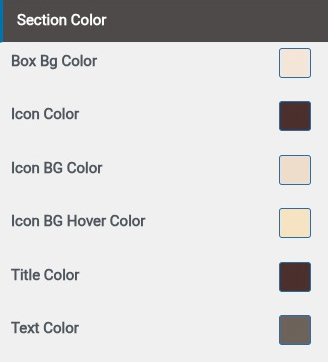
Final Display Of Facility Section

Set Seasonal Products Section
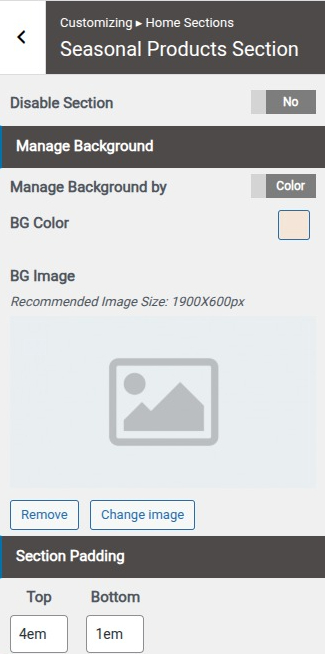
- Step 1 Go to Dashboard >> Appearance >> Customize >> Home section >> Seasonal Products Section Step 2
- (a) Set Disable/Enable
- (b) Set Section Padding
- (c) Select Background Image and Background Color
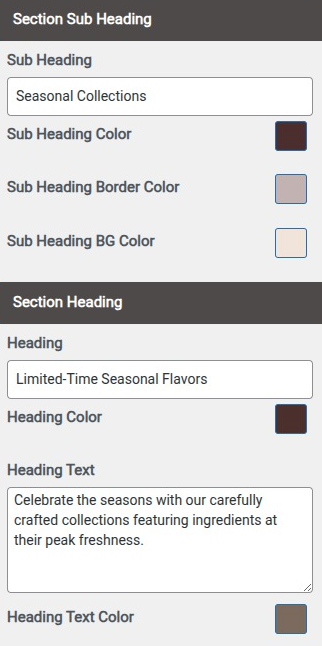
- (a) Add Heading , Sub Heading , text
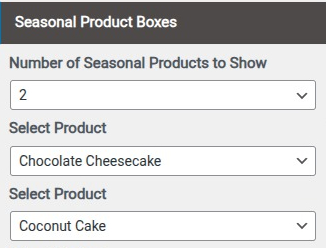
- (a) Select Number Of Box To Show
- (b) Add Product
- (a) Select Color
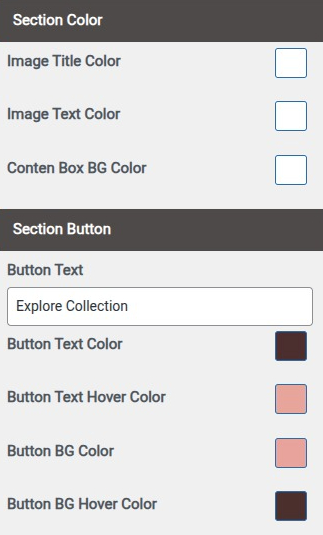
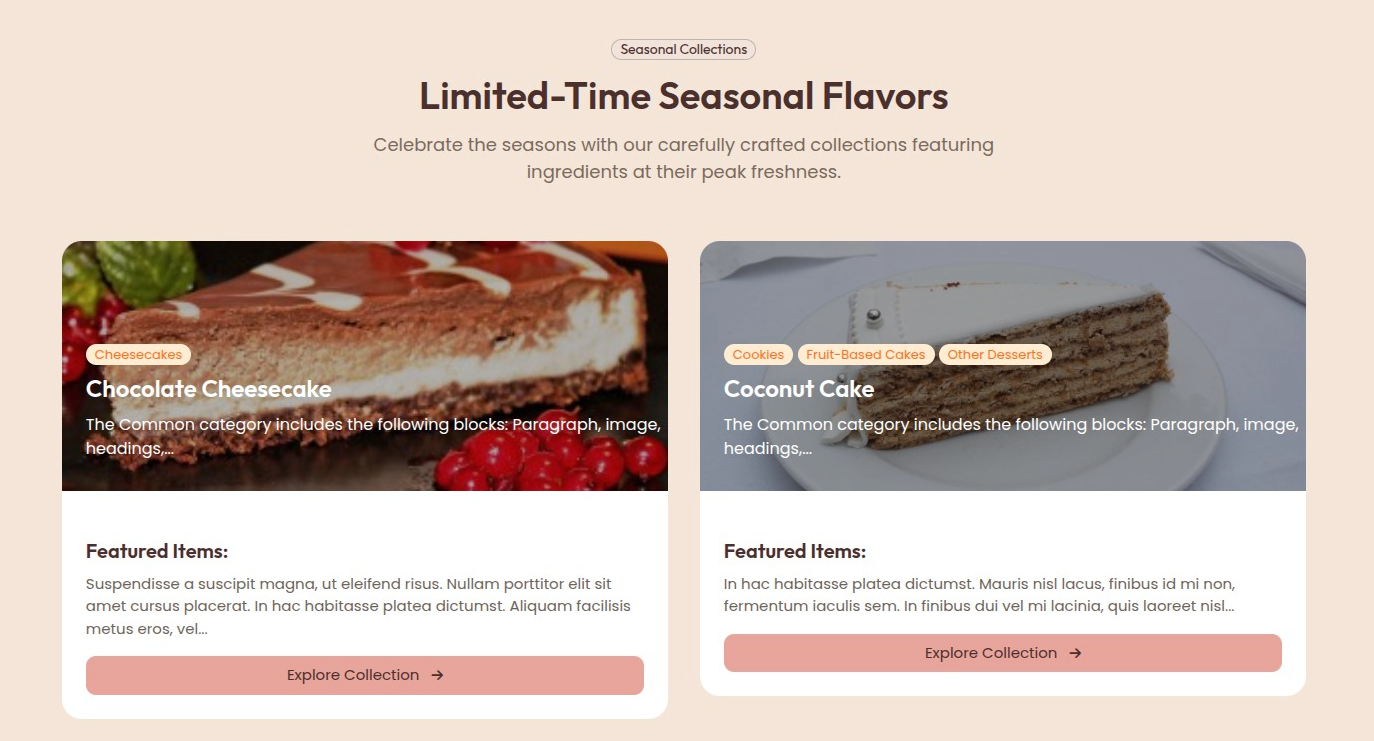
Final Display Of Seasonal Products Section
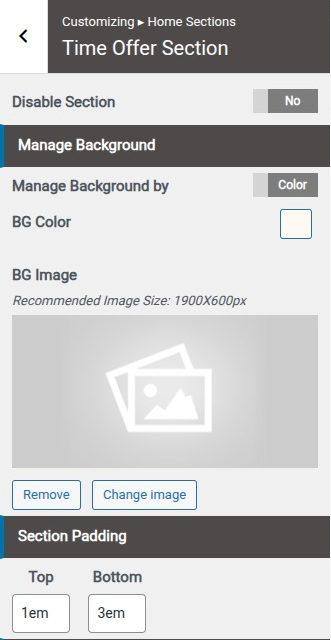
Set Time Offer Section
- Step 1. Go to Dashboard >> Appearance >> Customize >> Home section >> Time Offer Section Step 2.
- (a) Set Disable/Enable
- (b) Set Section Padding
- (c) Select Background Image and Background Color
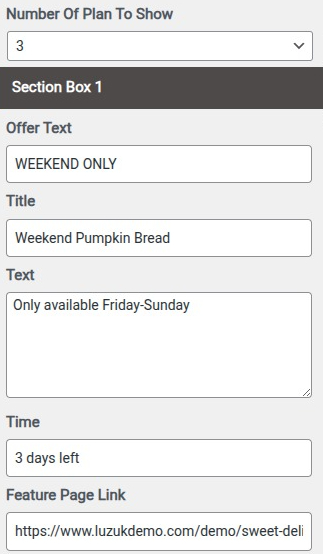
- (a) Select Number Of Box To Show
- (b) Add Offer Text
- (c) Add Title
- (d) Add Text
- (d) Add Page link
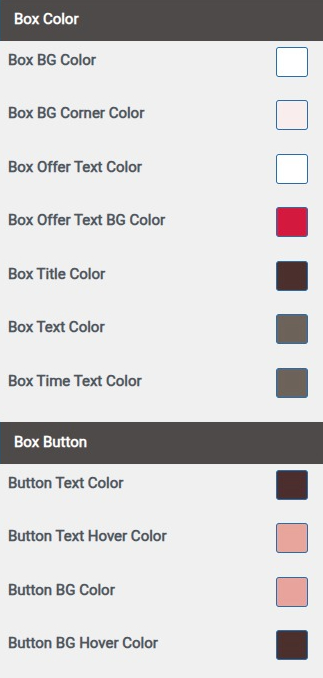
- (a)Select Color
- (a) Add Notice Box Title, Text, Button

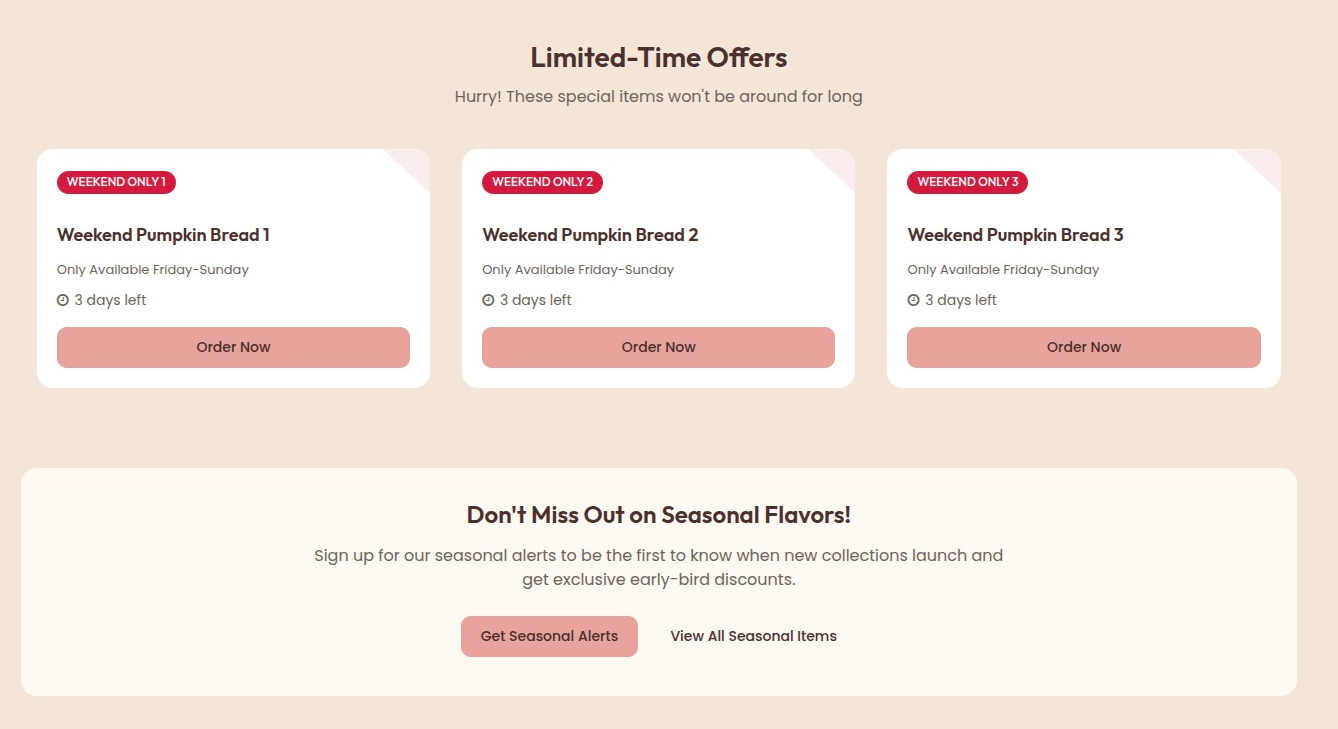
Final Display Of Time Offer Section
Set Save Offer Section
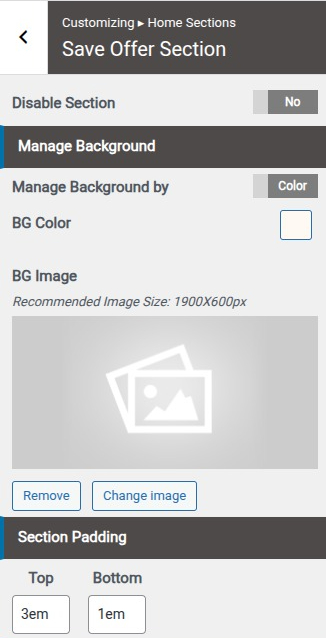
- Step 1. Go to Dashboard >> Appearance >> Customize >> Home section >> Save Offer Section
- (a) Set Disable/Enable
- (b) Set Section Padding
- (c) Select Background Image and Background Color
- (a) Add Heading , Sub Heading , Text
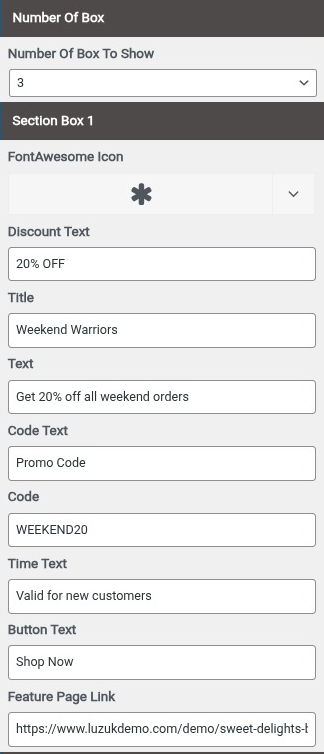
- (a) Select Number Of Box To Show
- (b) Add Offer Text
- (c) Add Title
- (d) Add Text
- (d) Add Page link
- (a)Select Color
- (a) Add Notice Box Title, Text, Button

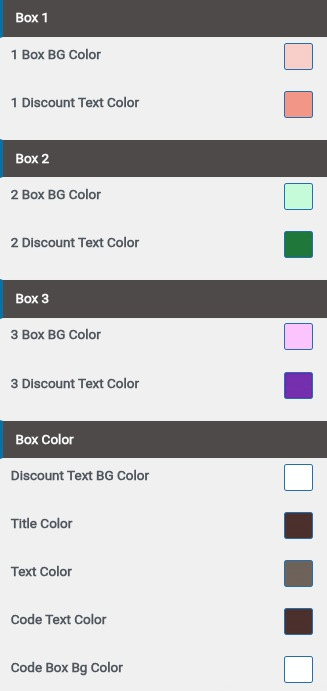
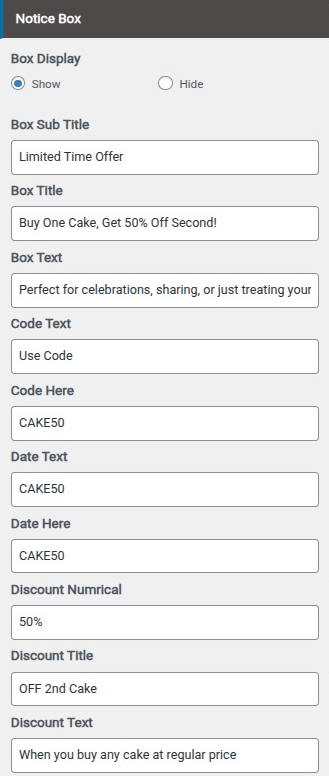
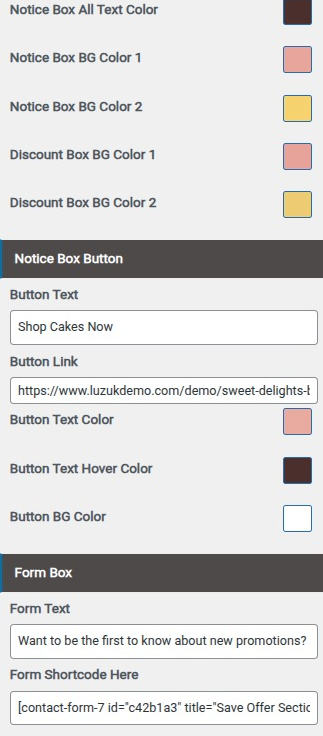
Final Display Of Save Offer Section
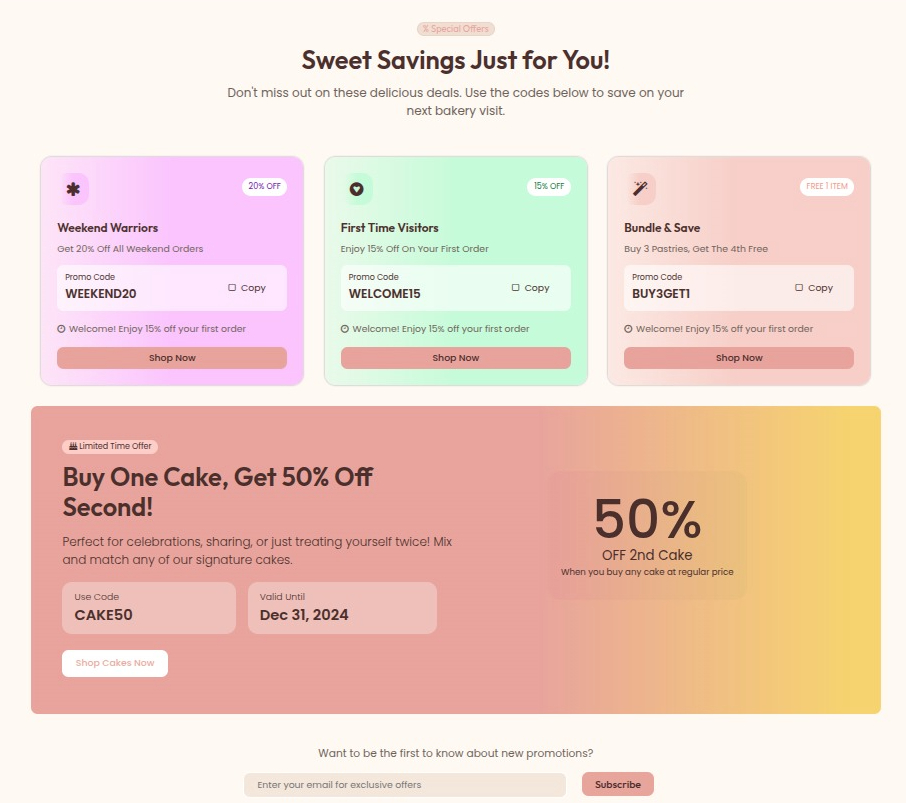
Set Step Section
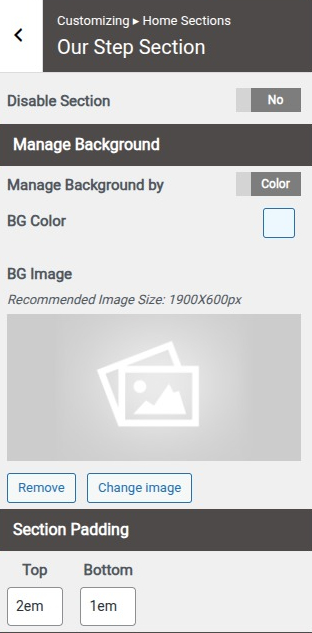
- Step 1. Go to Dashboard >> Appearance >> Customize >> Home section >> Step Section
- (a) Set Disable/Enable
- (b) Set Section Padding
- (c) Select Background Image and Background Color
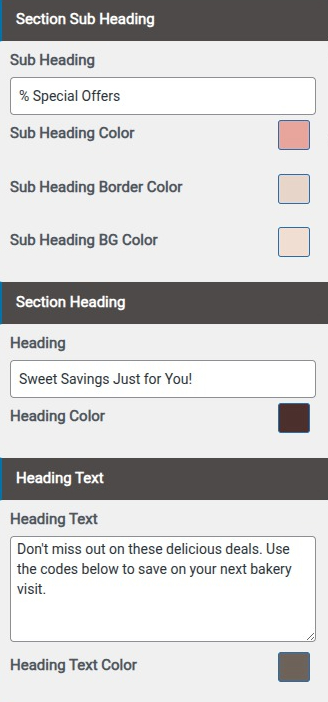
- (a)Add Section Heading
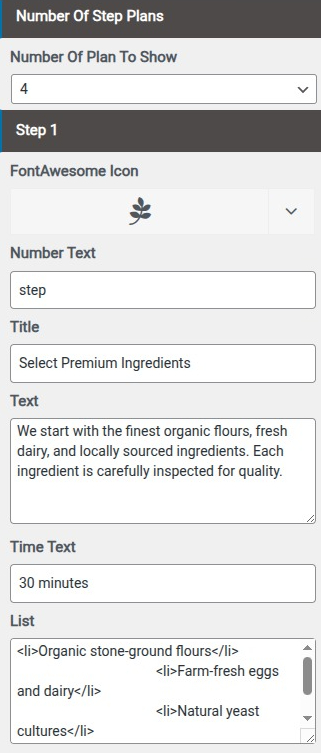
- (d) Select Number Of Box To Show
- (e) Select Icon
- (f) Add Title
- (f) Add List, Text, Time
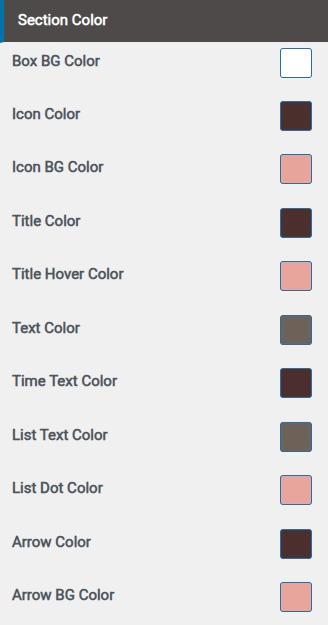
- (a)Select Color
Final Display Of Step Section

Set Quality Section Section
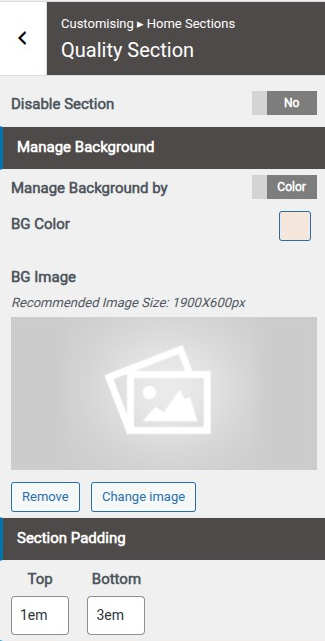
- Step 1. Go to Dashboard >> Appearance >> Customize >> Home section >> Quality Section Section
- (a) Set Disable/Enable
- (b) Set Section Padding
- (c) Select Background Image and Background Color
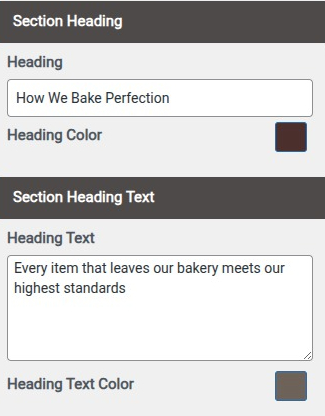
- (a) Add Heading , text
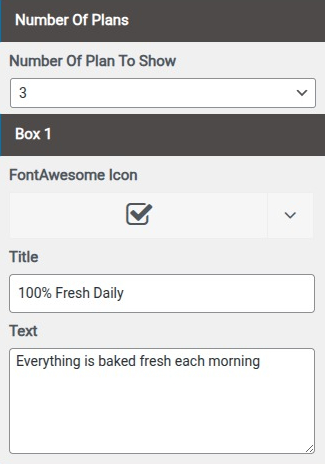
- (a) Select Number Of Box To Show
- (b) Add Offer Text
- (c) Add Title
- (d) Add Text
- (d) Add Page link
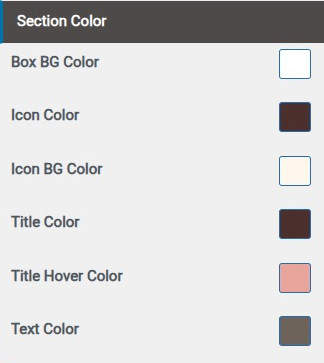
- (a)Select Color
- (a) Add Notice Box Title, Text, Button

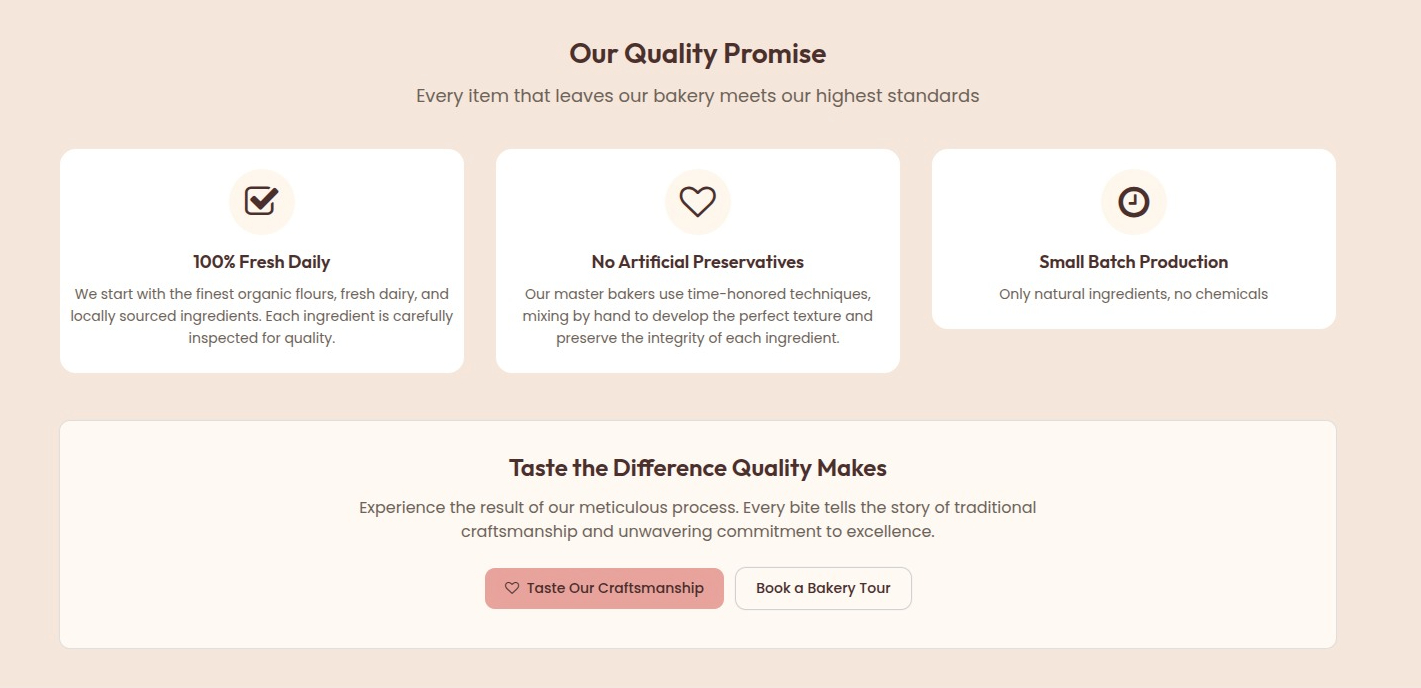
Final Display Of Quality Section Section
Set About Section
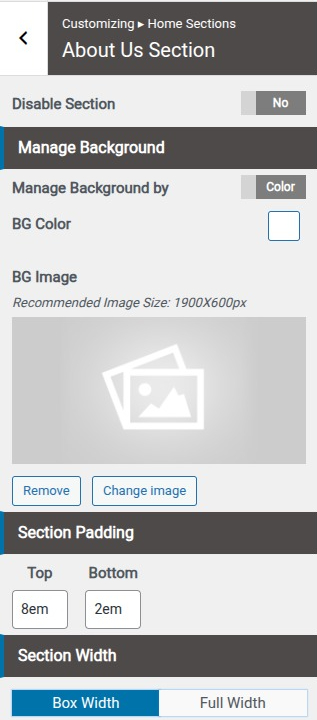
- Step1. Go to Dashboard >> Appearance >> Customize >> Home section >> About Section Step2.
- (a) Select Background Image and Background Color
- (b) Set Section Padding
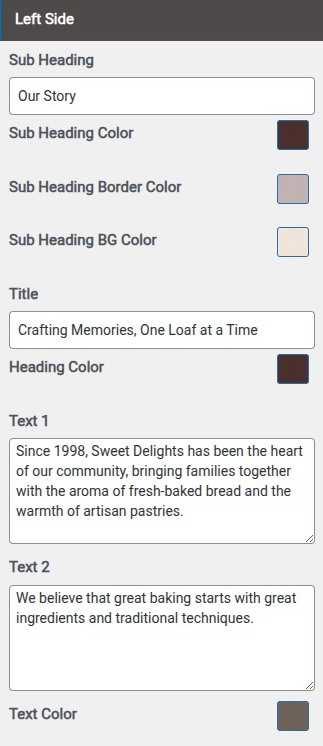
- (a) Add Section Heading & Sub Heading
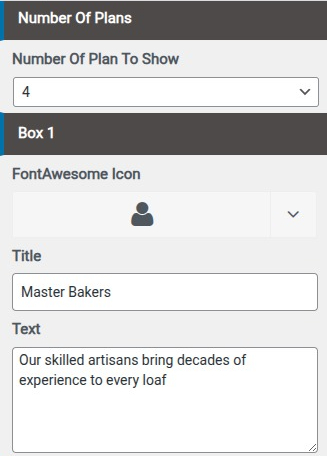
- (b) Add section Text , List
- (c) Select Colors
- (d) Set Button display, Button text & Select Colors
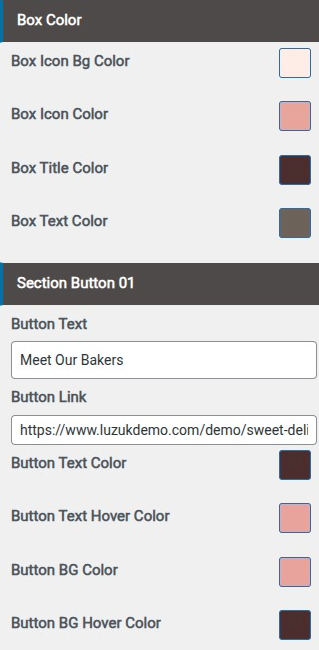
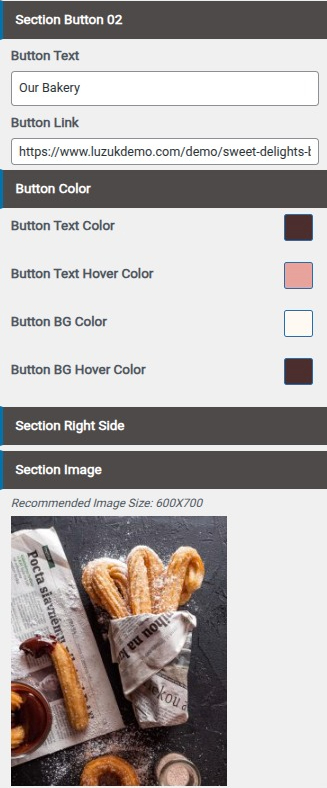
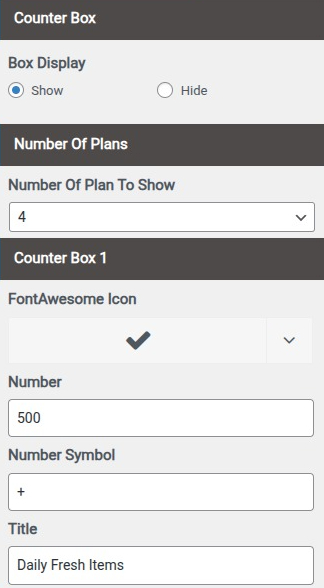
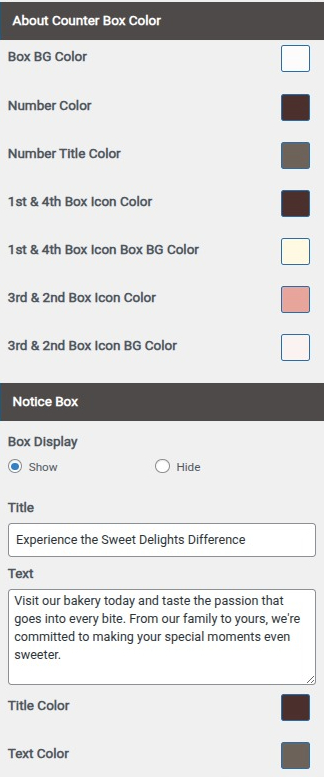
Final Display Of About Section
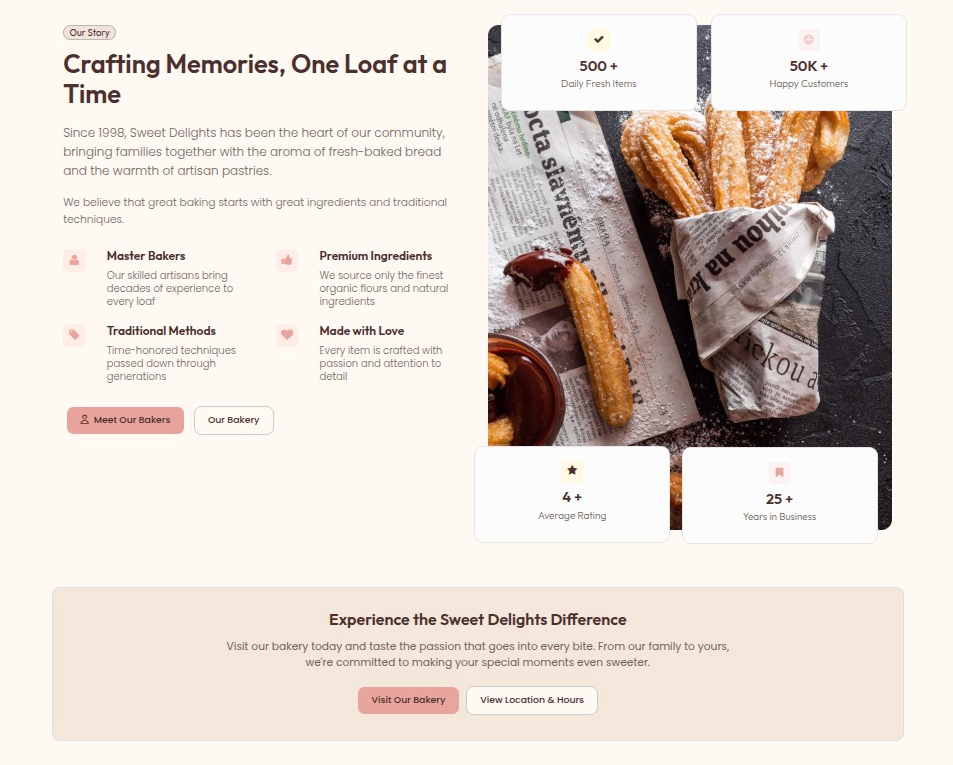
Set Team Section
- Step 1. Go to Dashboard >> Appearance >> Customize >> Home section >> Team Section Step 2.
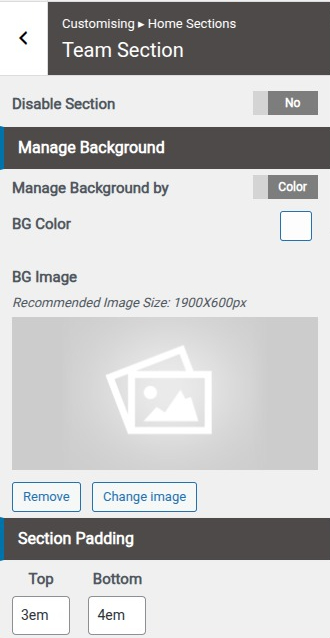
- (a) Set Disable/Enable
- (b) Set Padding for Team section
- (c) Select Background Image and Background Color
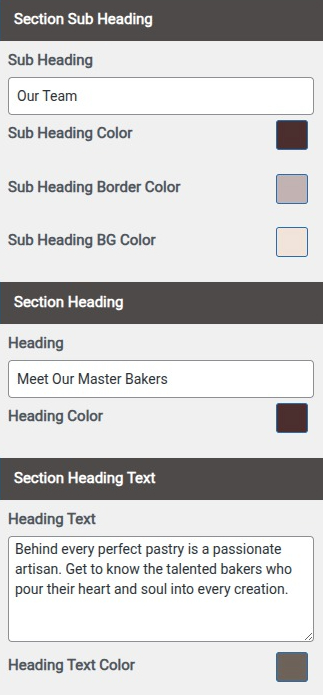
- (a)Add Section Sub Heading & Heading
- (b)Select Section Sub Heading & Heading Color
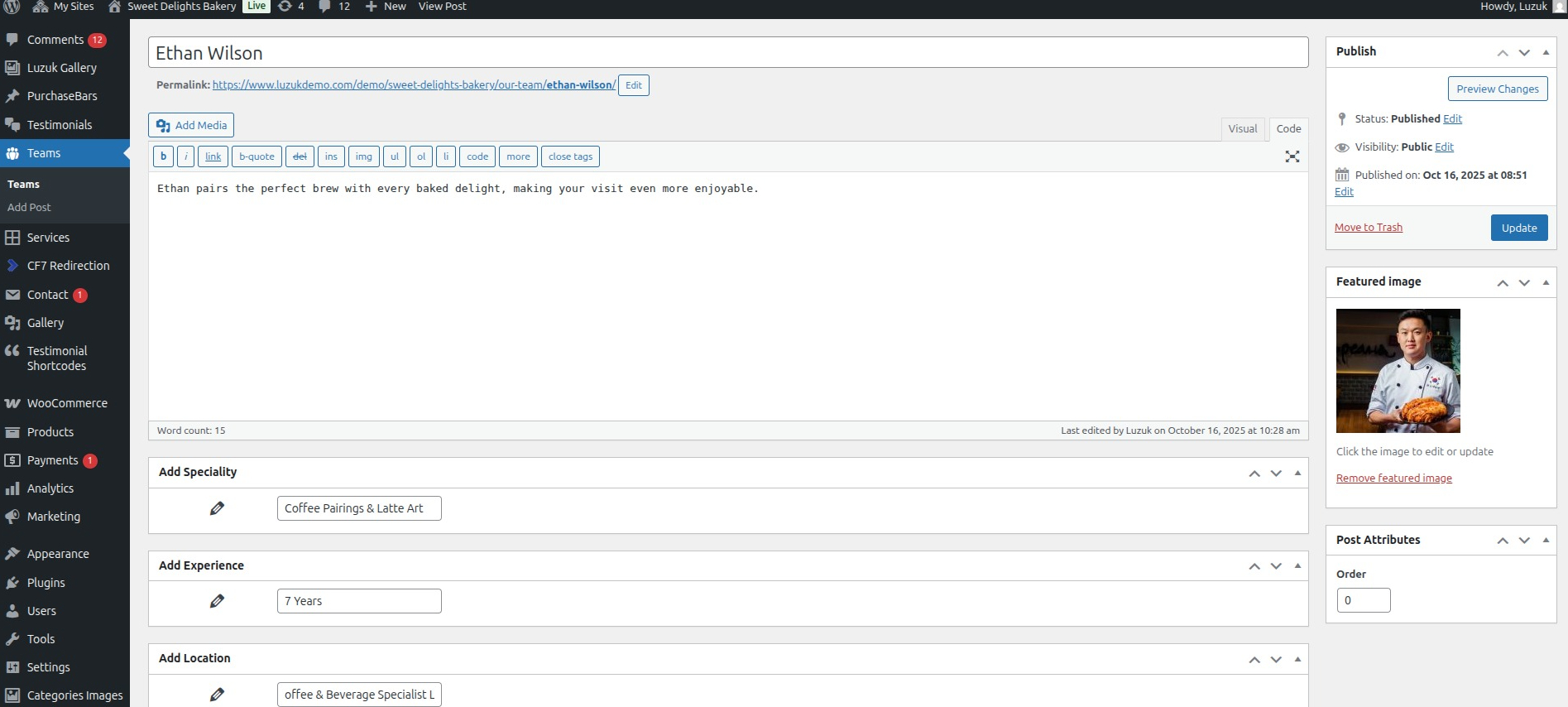
- (a) Go to >> Dashboard >> Team >> Add New
- (b) Add >> Title
- (c) Add >> Description
- (d) Set >> Featured Image
- (e) Add >> Social Link
- (f) Click On >> Publish Button
- (a) Go to Dashboard >> Appearance >> Customize >> Team Section
- (b) Select Team Counter >> Title, Icon ,Text
- (b) Select >> Team Counter Color
- (b) Select Number Of Team To Show Page
- (a) Select Colors


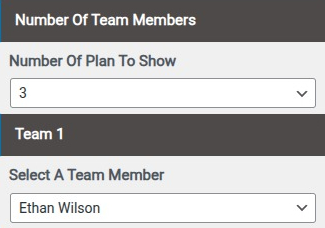
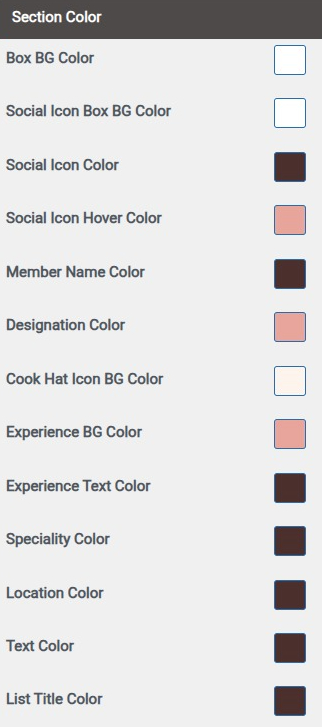
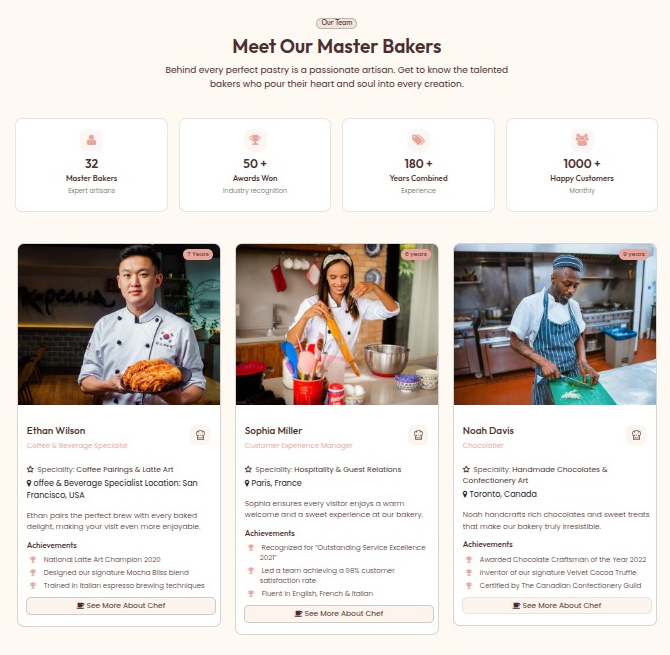
Final Display Of Team Section
Set Skill Section
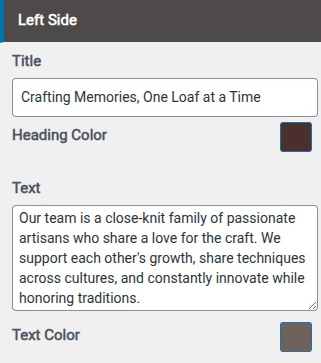
- Step 1. Go to Dashboard >> Appearance >> Customize >> Home section >> Skill Section Step2.
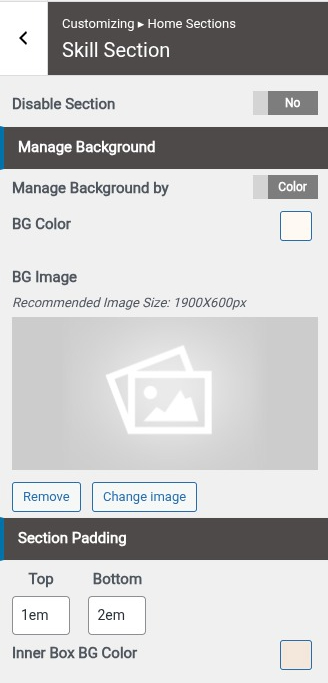
- (a) Set Disable/Enable
- (b) Set Section Padding
- (c) Select Background Image and Background Color
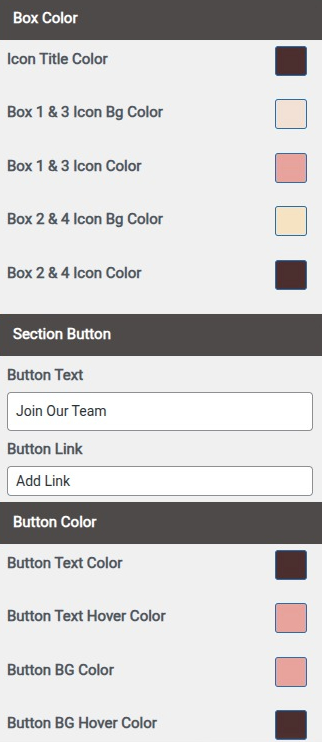
- (d) Add Title, Text, List, Button
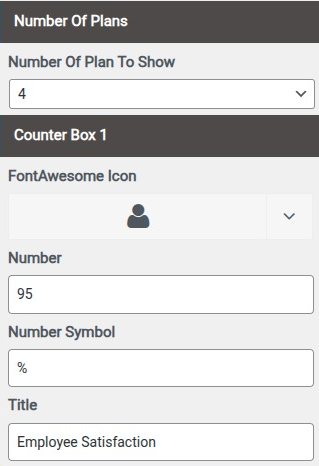
- (a) Select Number Of Box To Show
- (b) Add Number ,Title
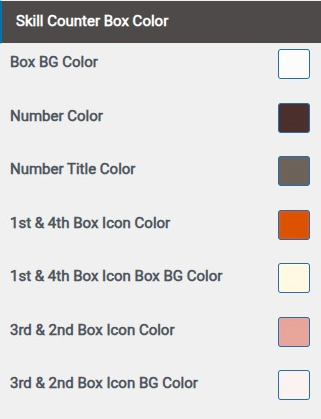
- (a)Select Colors
Final Display Of Skill Section
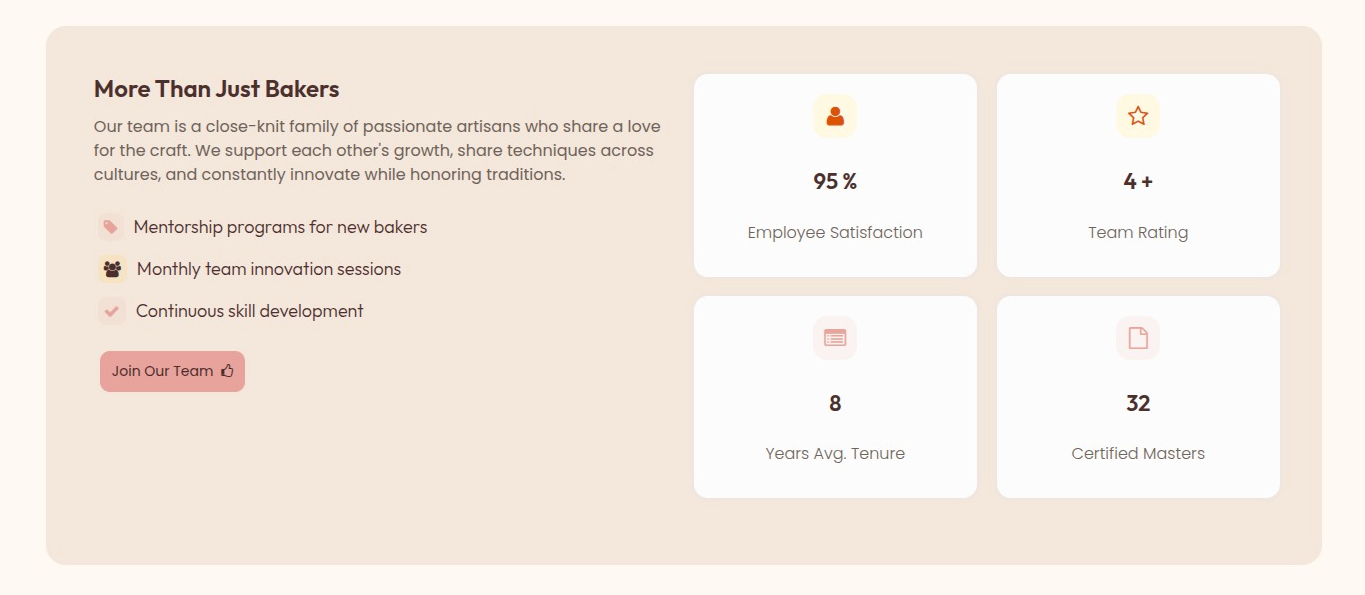
Set Sweet Products Section
- Step 1. Go to Dashboard >> Appearance >> Customize >> Home section >> Sweet Products Section Step 2.
- (a) Set Disable/Enable
- (b) Set Padding for Sweet Products section
- (c) Select Background Image and Background Color
- (a)Add Section Sub Heading & Heading & Heading Color
- (a) Go to Dashboard >> Appearance >> Customize >> Sweet Products Section
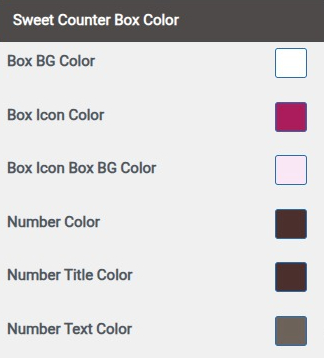
- (b) Select Sweet Products Counter >> Title, Icon ,Text
- (b) Select >> Sweet Products Counter Color
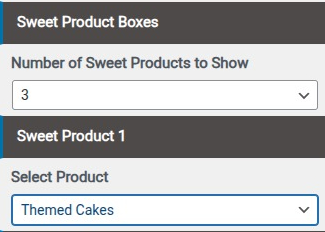
- (b) Select Number Of Sweet Products To Show Page
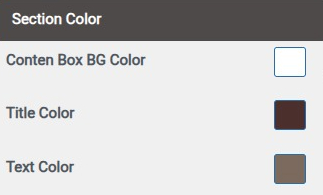
- (a) Select Colors
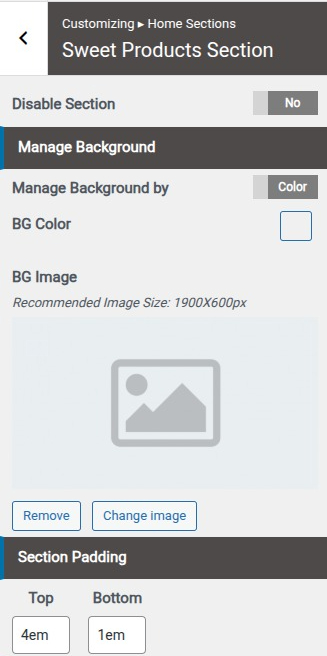
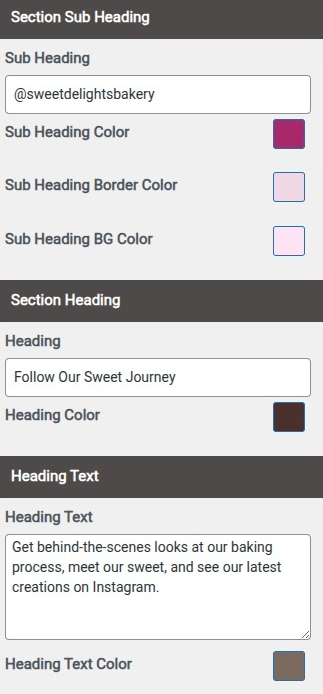
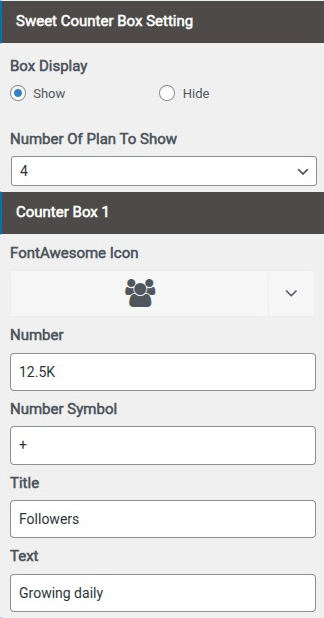
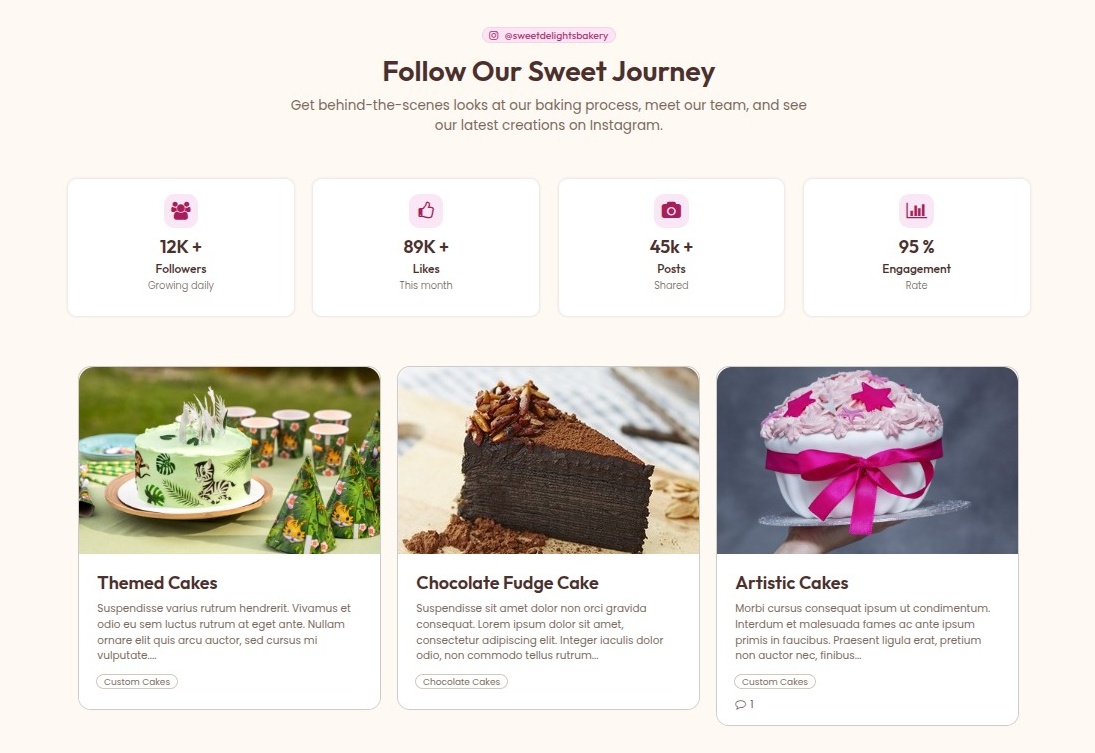
Final Display Of Sweet Products Section
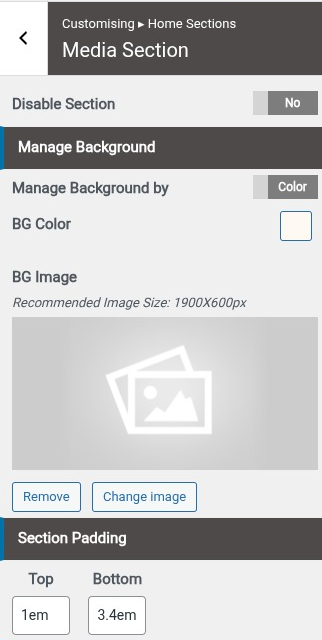
Set Media Section
- Step1. Go to Dashboard >> Appearance >> Customize >> Home section >> Media Section Step2.
- (a) Set Disable/Enable
- (b) Set Section Padding
- (c) Select Background Image and Background Color
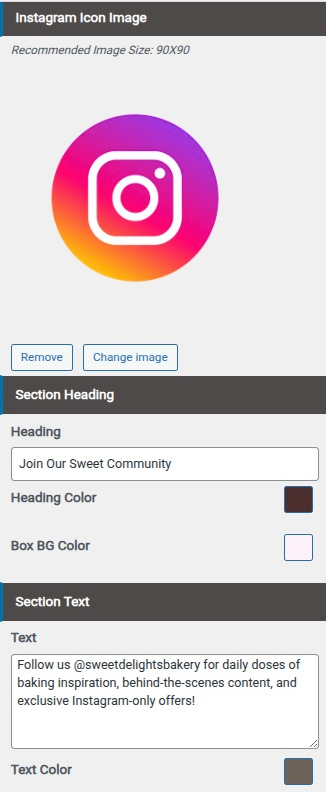
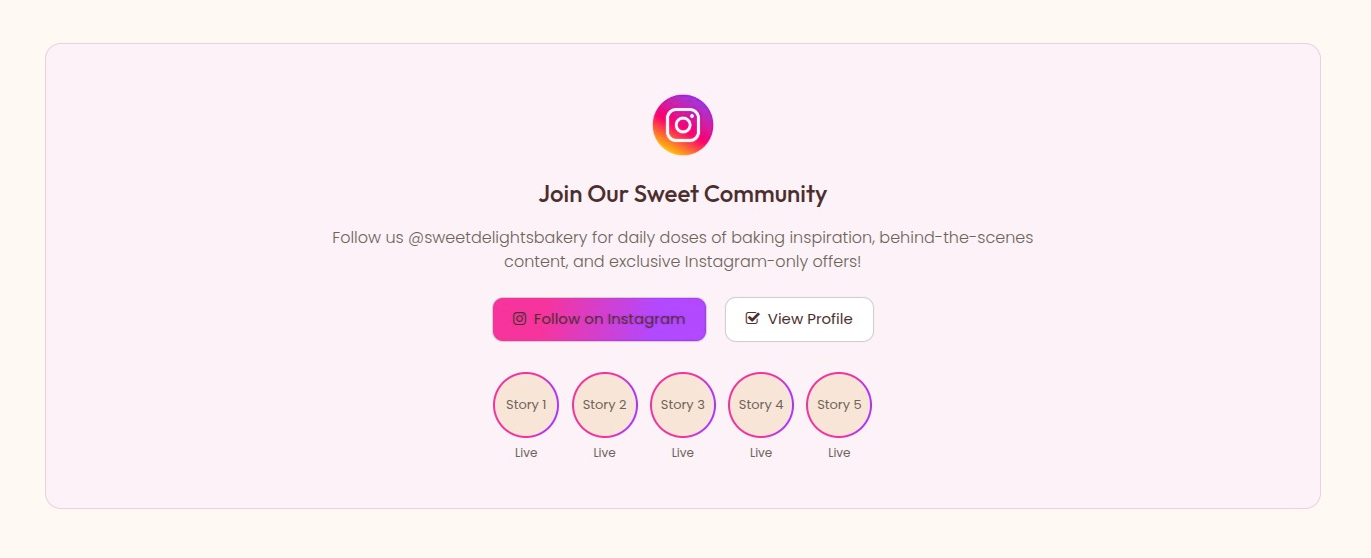
- (a) Section Heading
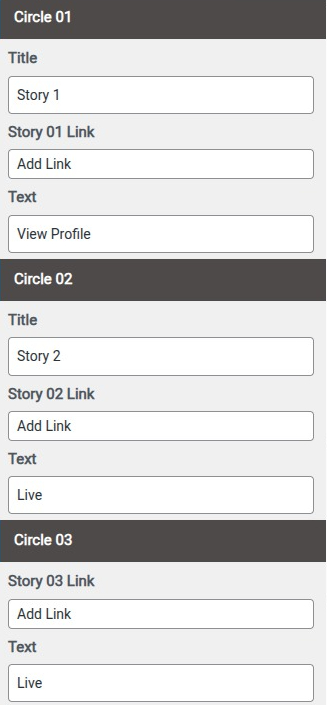
- (b) Select Number Of Box To Show
- (c) Select Media Icon
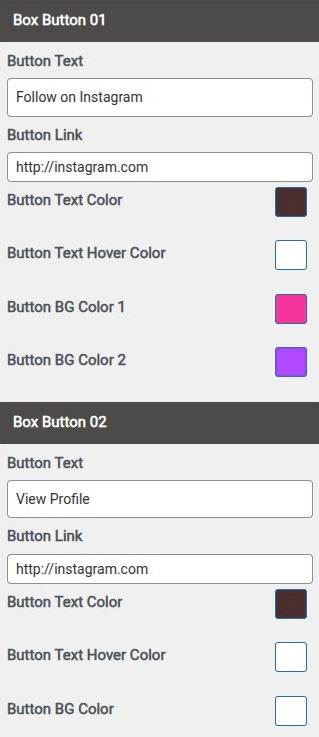
- (d) Add Title , Text , Button Text & Link
- (a)Select Colors
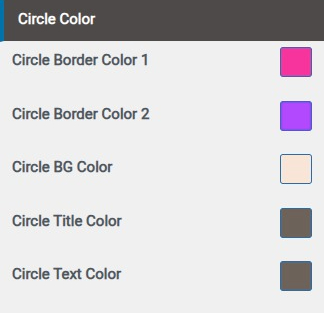
Final Display Of Media Section
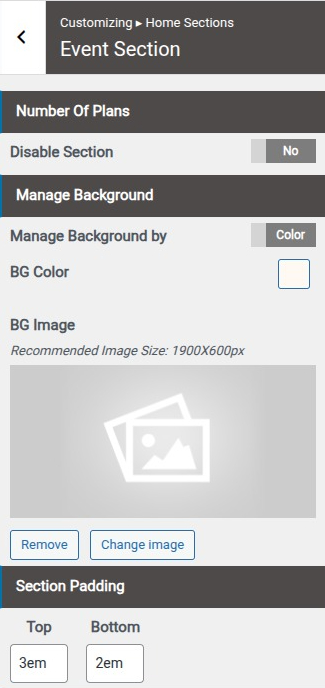
Set Event Section
- Step1. Go to Dashboard >> Appearance >> Customize >> Home section >> Event Section Step2.
- (a) Set Disable/Enable
- (b) Set Section Padding
- (c) Select Background Image and Background Color
- (a) Section Heading
- (b) Select Number Of Box To Show
- (c) Select Icon
- (d) Add Title , Text , Button Text & Link
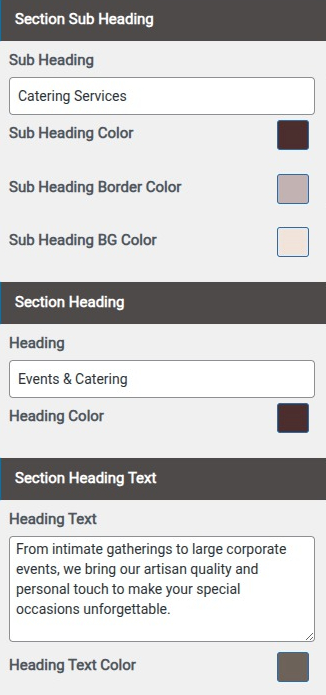
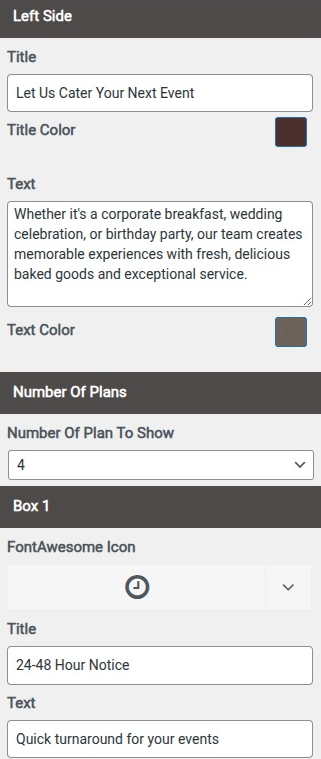
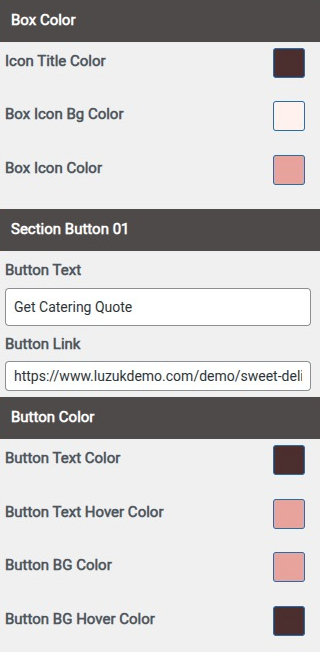
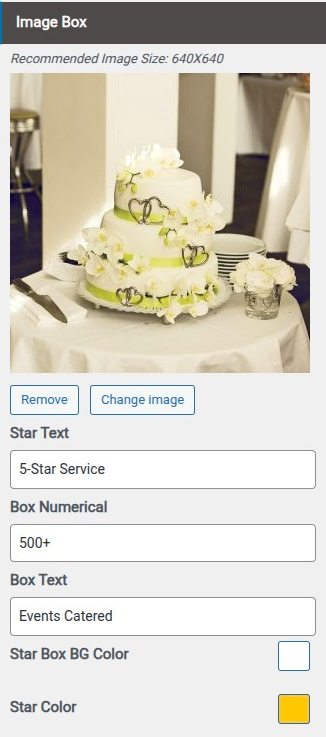
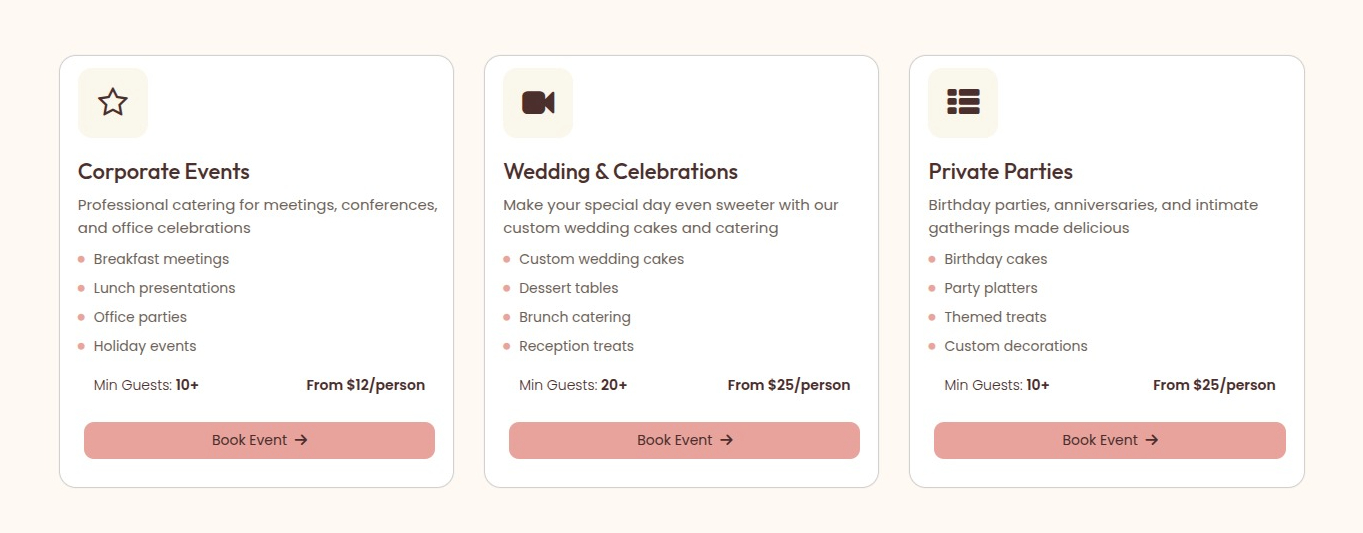
Final Display Of Event Section

Set Feature Section
- Step1. Go to Dashboard >> Appearance >> Customize >> Home section >> Feature Section Step2.
- (a) Set Disable/Enable
- (b) Set Section Padding
- (c) Select Background Image and Background Color
- (a)Select Colors
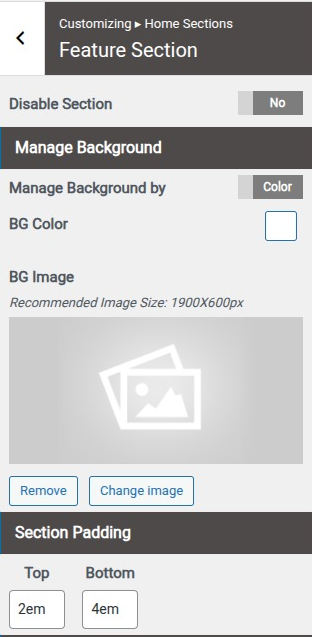


Final Display Of Feature Section
Set Contact Section
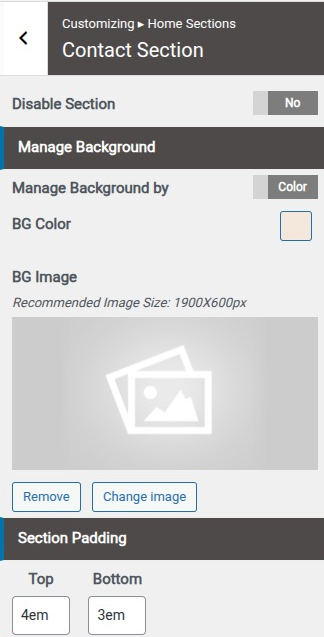
- Step 1. Go to Dashboard >> Appearance >> Customize >> Home section >> Contact Section Step 2.
- (a) Select Background image or Background Color
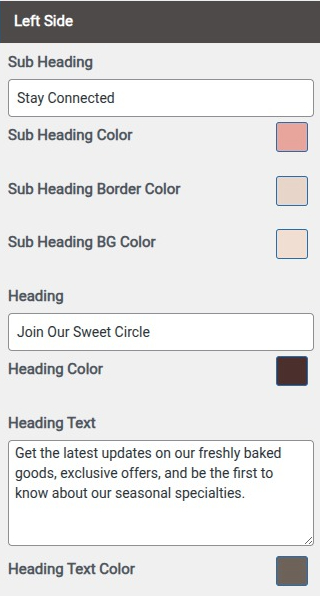
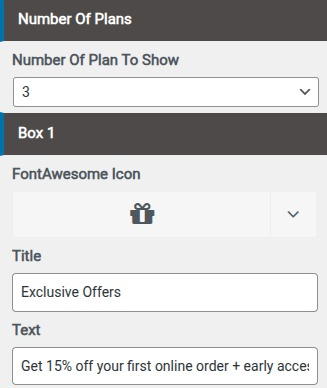
- (b) Add Section Sub Heading & Heading
- a : Use Contact Page 7 Plugin {install & Active }
- b : Go to Dashboard >> Contact
- c : Click Add New button
- d : Select Contact Page template at right bottom of page
- e : Click publish button
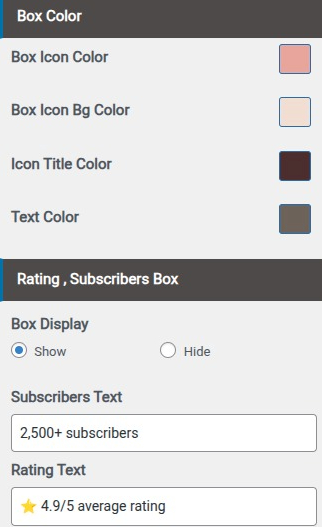
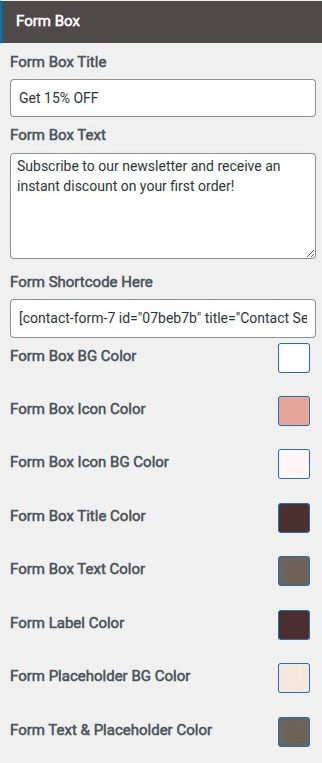
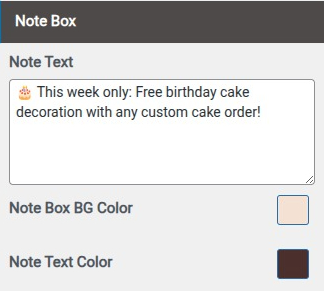
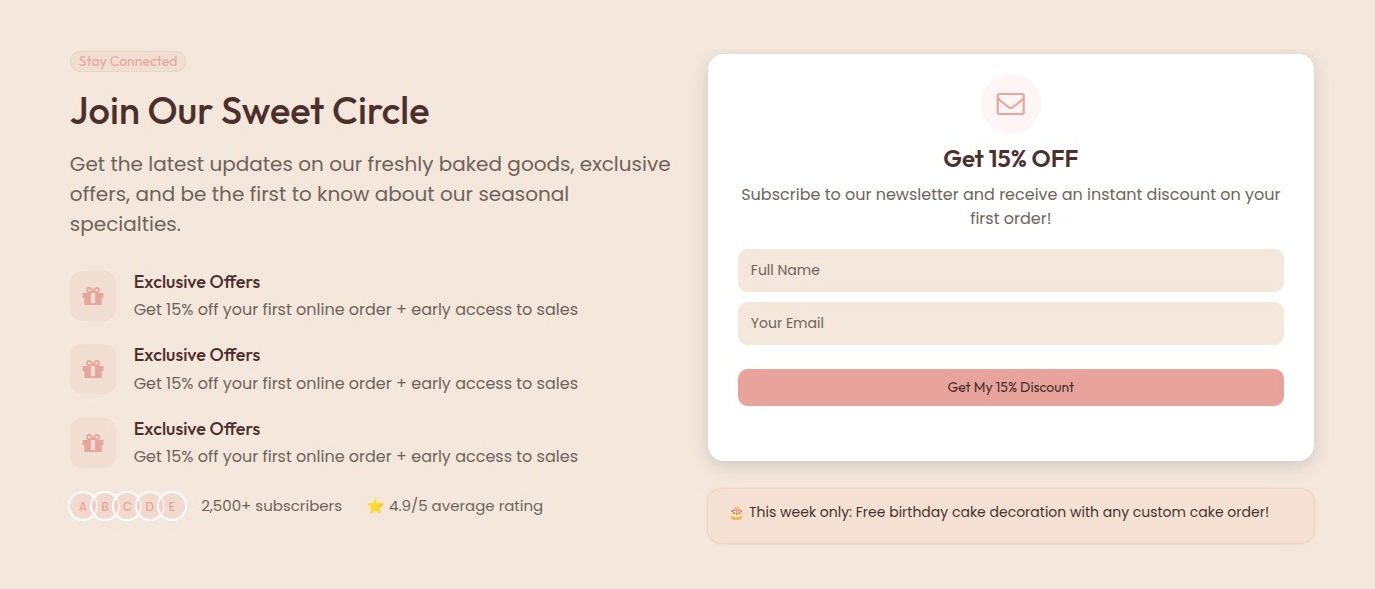
Final Display Of Appointment Section
Set Blog Section
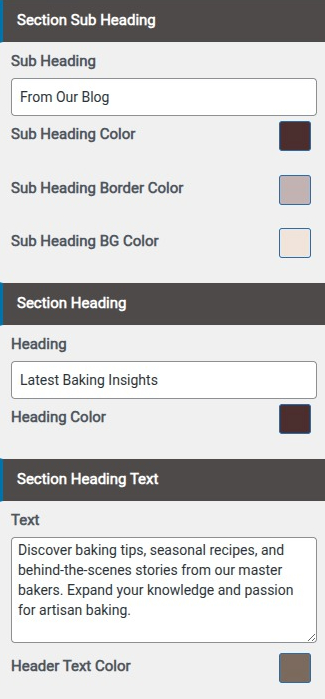
- Step 1. Go to Dashboard >> Appearance >> Customize >> Home section >> Blog Section
- (a) Select background image and background color
- Step 2.
- (a) Add Section Sub Heading & Heading
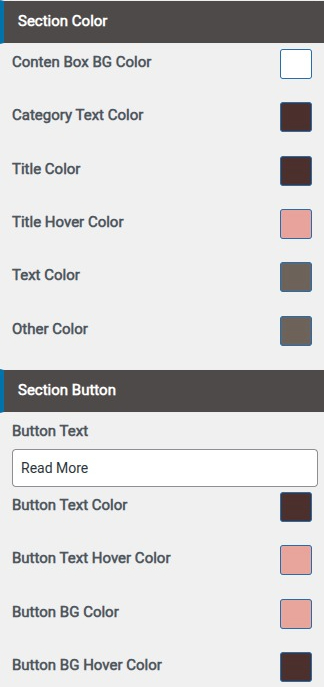
- (b) Select Section Heading Color
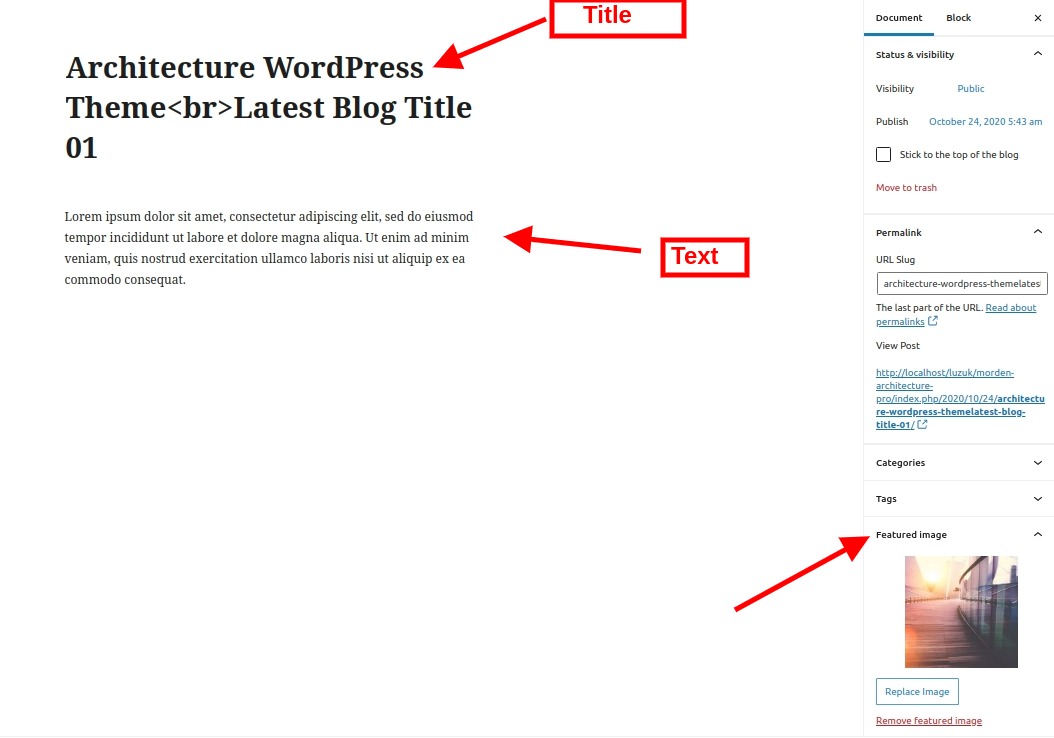
- Step 3. Go to Dashboard >> post >> Add New
- (a) Add Post title
- (b) Add Post Description
- (c) Select Categories
- (d) Select Tag
- (e) select Featured Image
- (f) Publish
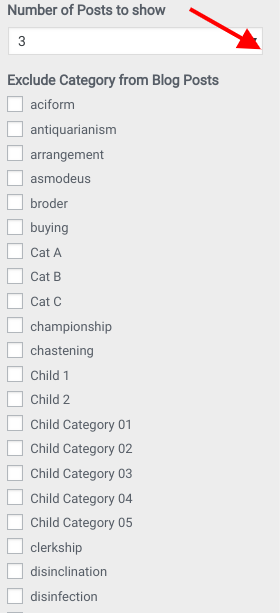
- (g) Select Number of post to show


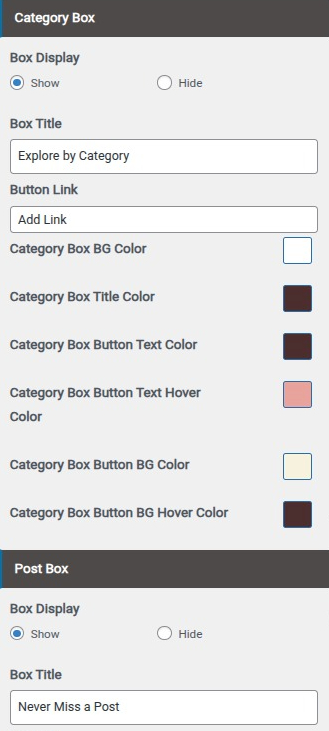
Final Display Of Blog Section
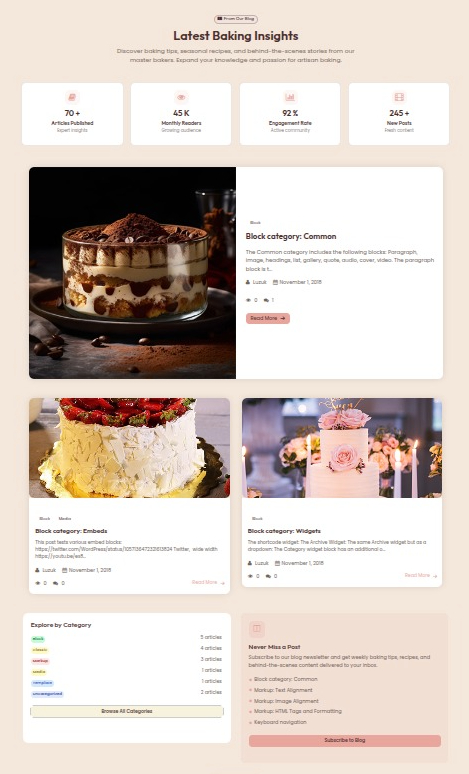
Set Order Now Section
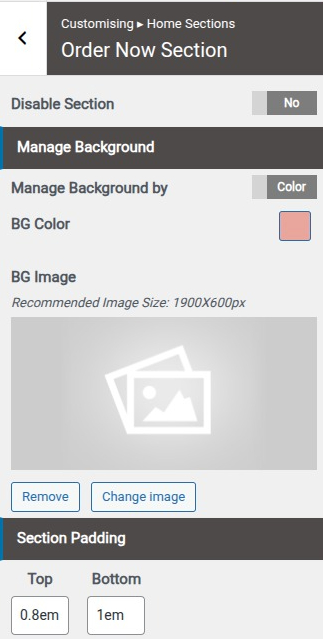
- Step 1. Go to Dashboard >> Appearance >> Customize >> Home section >> Order Now Section
- (a) Select background image and background color
- Step 2
- (a) Add Title
- (a) Add Button Title & Links

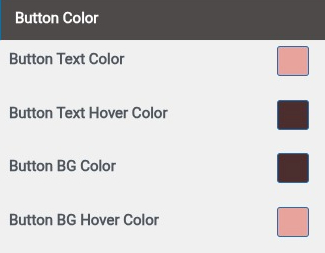
Final Display Of Order Now Section

Set Footer Section
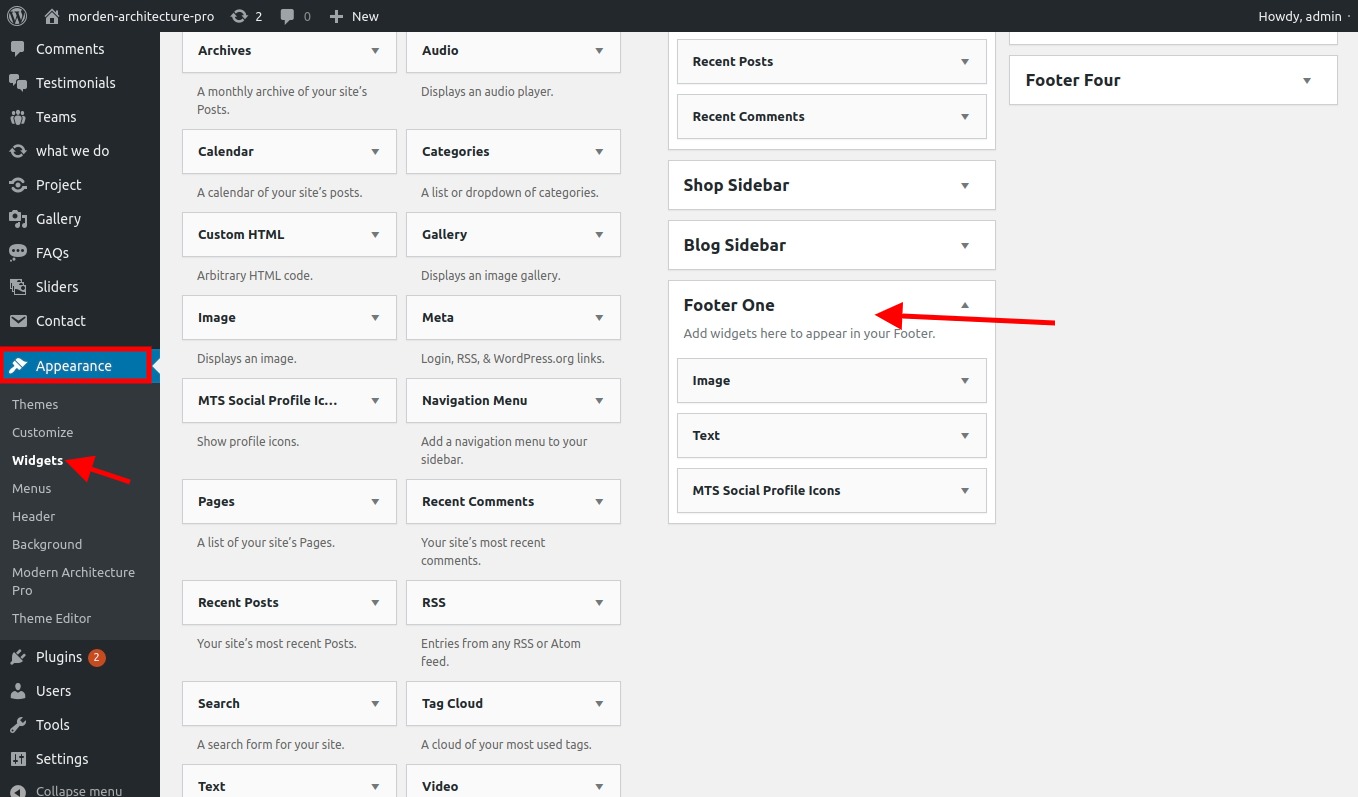
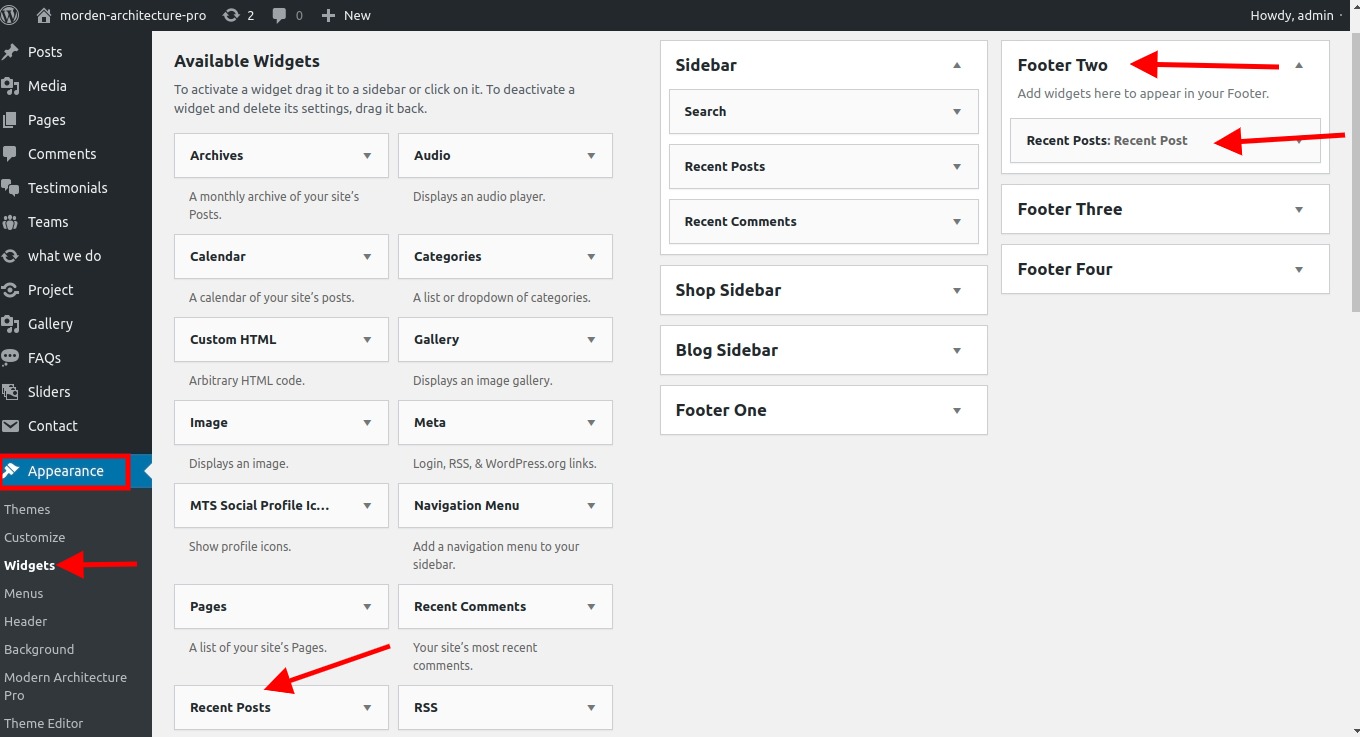
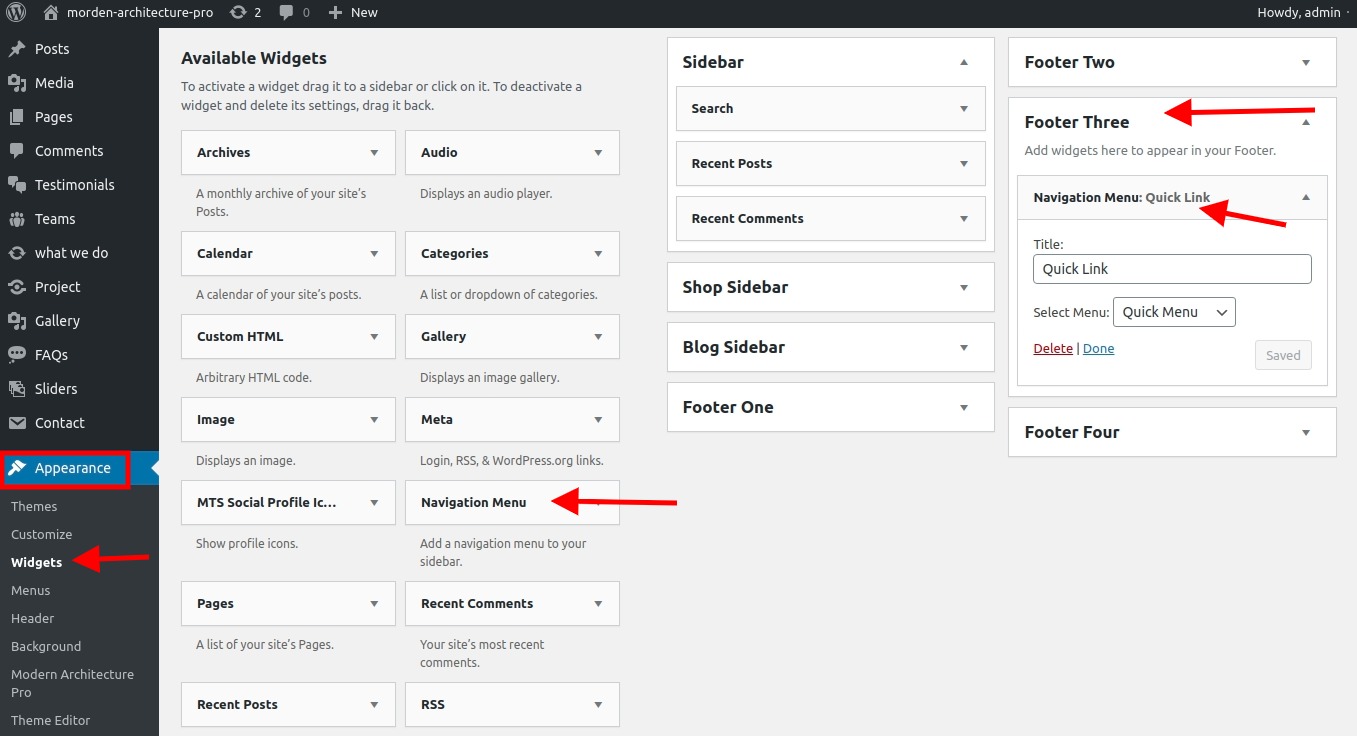
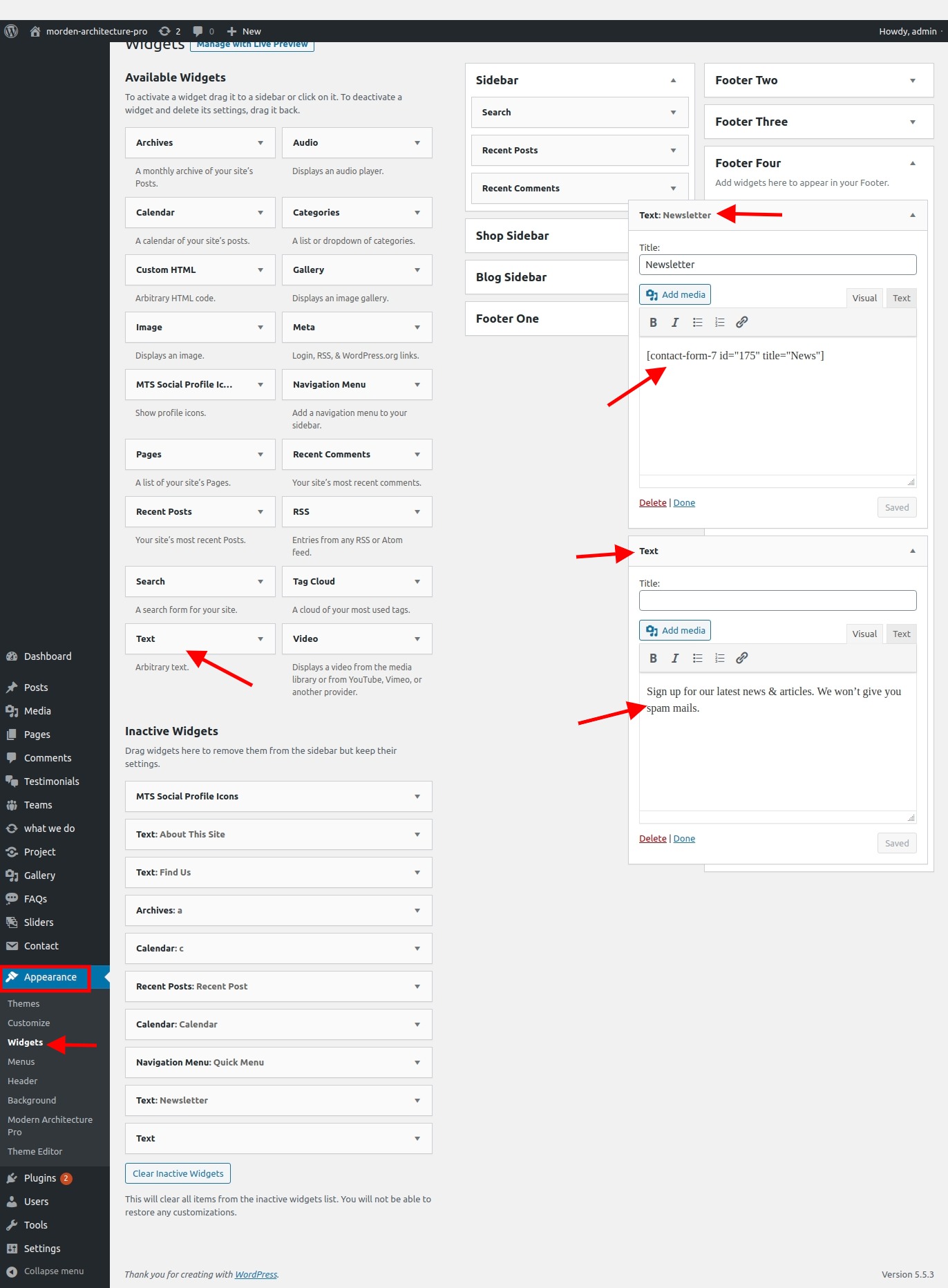
- Step1. Go to Dashboard >> Appearance >> Widgets >> Footer Section
- Step2. Select footer
- (a)footer One
- (i)Add Text Title
- (ii)Add Text Content
- (iii)click on "save" button
- (b)footer Two
- (i)Add QUICK LINKS
- (ii)Add Title
- (iii)click on "save" button
- (c)footer Three
- (i)Drag And DropRecent Post Widgets From Widget Area
- (ii)Add Title
- (iv)click on "save" button
- (c)footer Four
- (i)Drag And DropText Widgets From Widget Area
- (ii)Add Title
- (ii)Add Conatct Form Shortcode
- (iii)Drag And DropMTS SOCIAL PROFILE ICONS Widgets From Widget Area
- (iv)Add Title
- (iv)Add Social Links
- (v)click on "save" button
- (c)footer Five
- (i)Drag And DropMTS Social Profile Icons Widget From Widget Area
- Step3. Go to Dashboard >> Appearance >> Customize >> General Configuration >> Footer Copyright Settings
- a. Add Footer Copyright Text
- b. Manage background by Image / Colors
- c. Add Phone Label
- d.Add Phone Number
- e. Add Location Label
- f. Add Location
- g. Add Email Label
- h. Add Email Id
- i. Set Bottom Footer Padding
- j. Set Footer Copyright Text
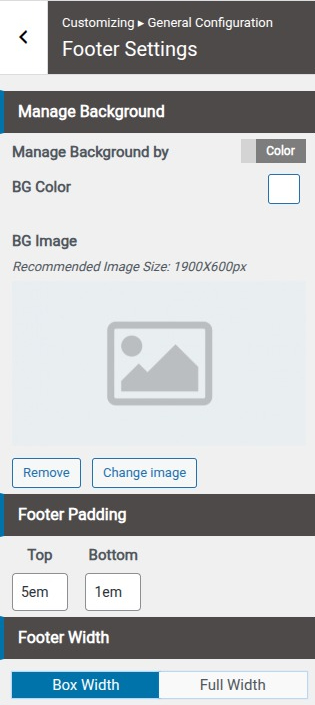
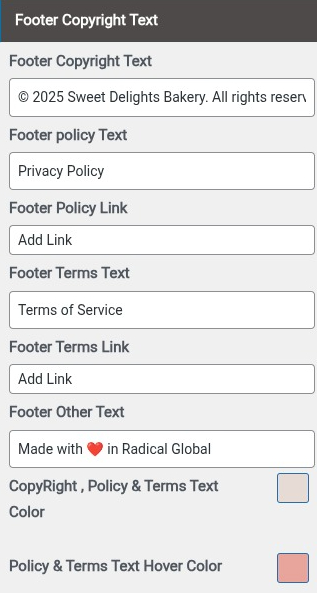
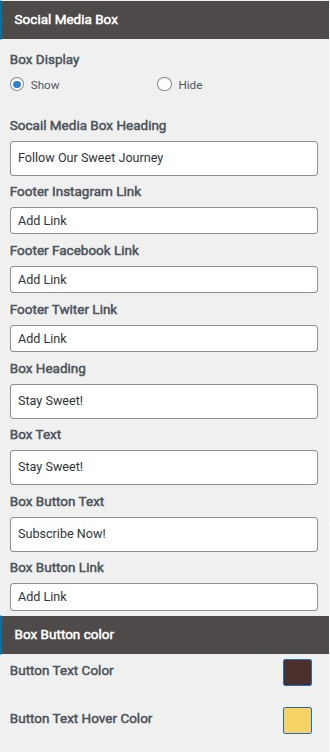
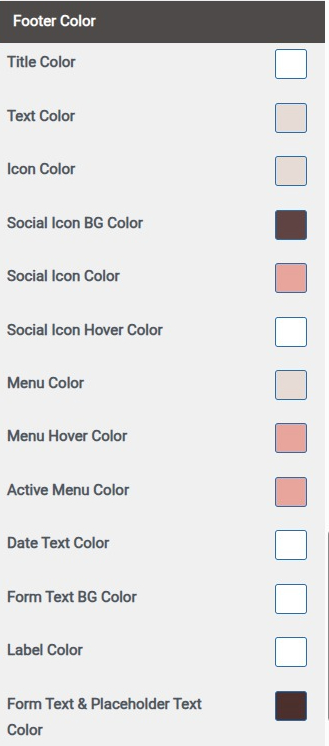
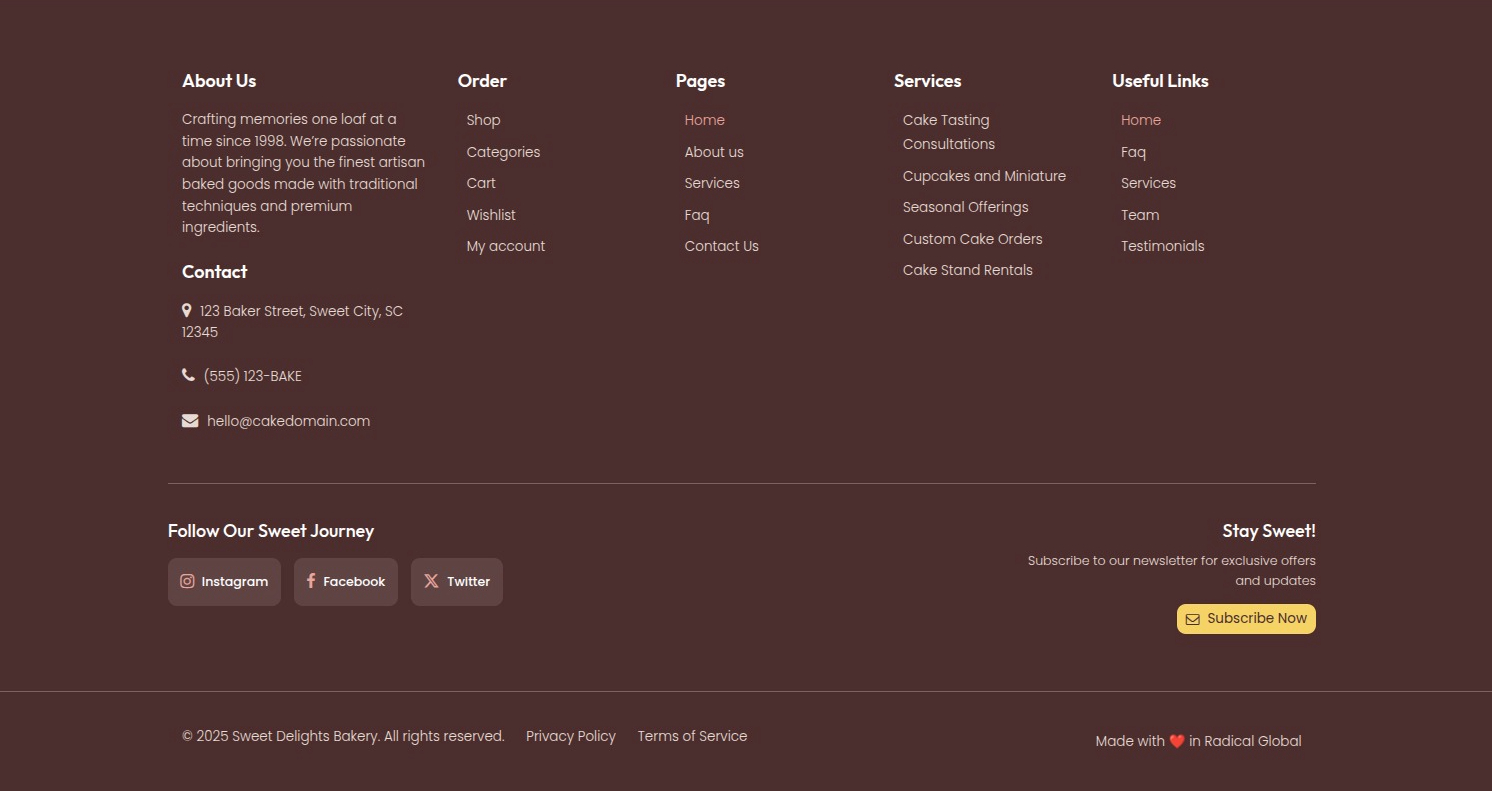
Final Display Of Footer Section
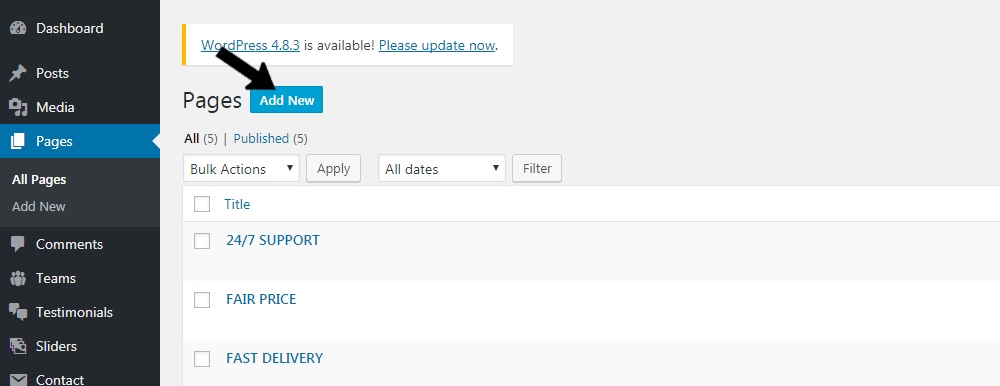
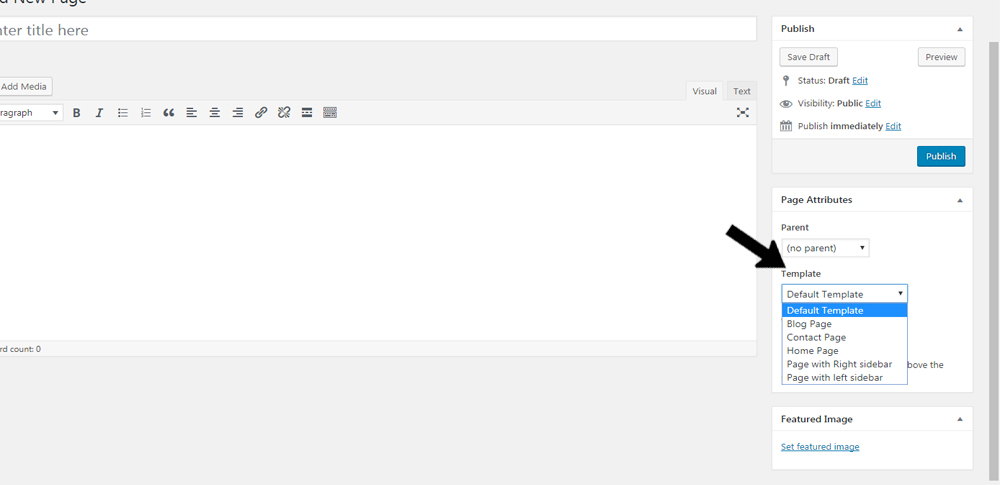
Setting up Page Template
- Step 1. Go to Dashboard >> Page
- Step 2. Go to Add New button
- Step 3. select template at right bottom of page
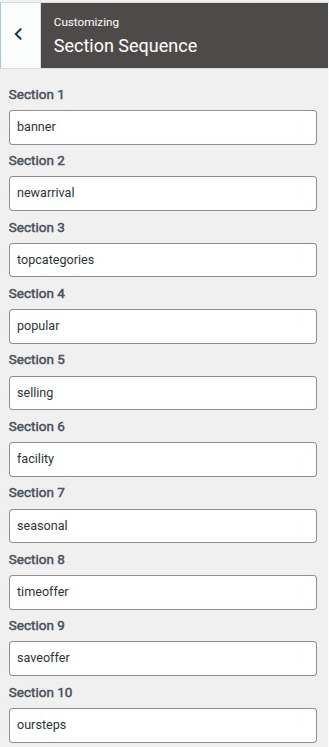
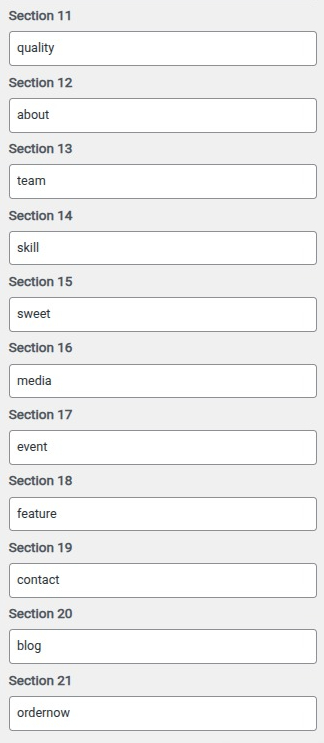
To Arrange Section Sequence
- Step 1. Go to Dashboard >> Appearance >> Customizer >> Section Sequence
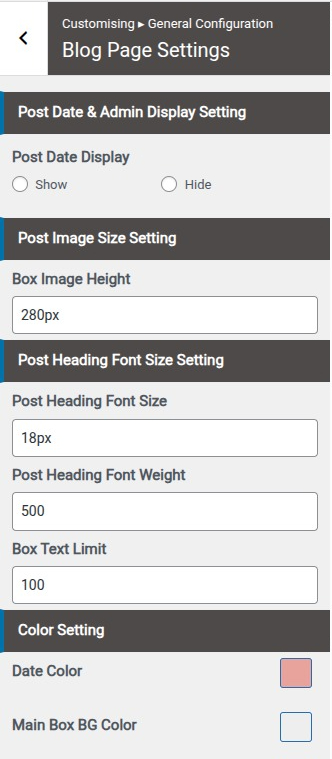
Set Blog page Setting
- Step 1. Go to Dashboard >> Appearance >> Customizer >> General Configuration >> Post page Date Settings
Inner Pages
Pages
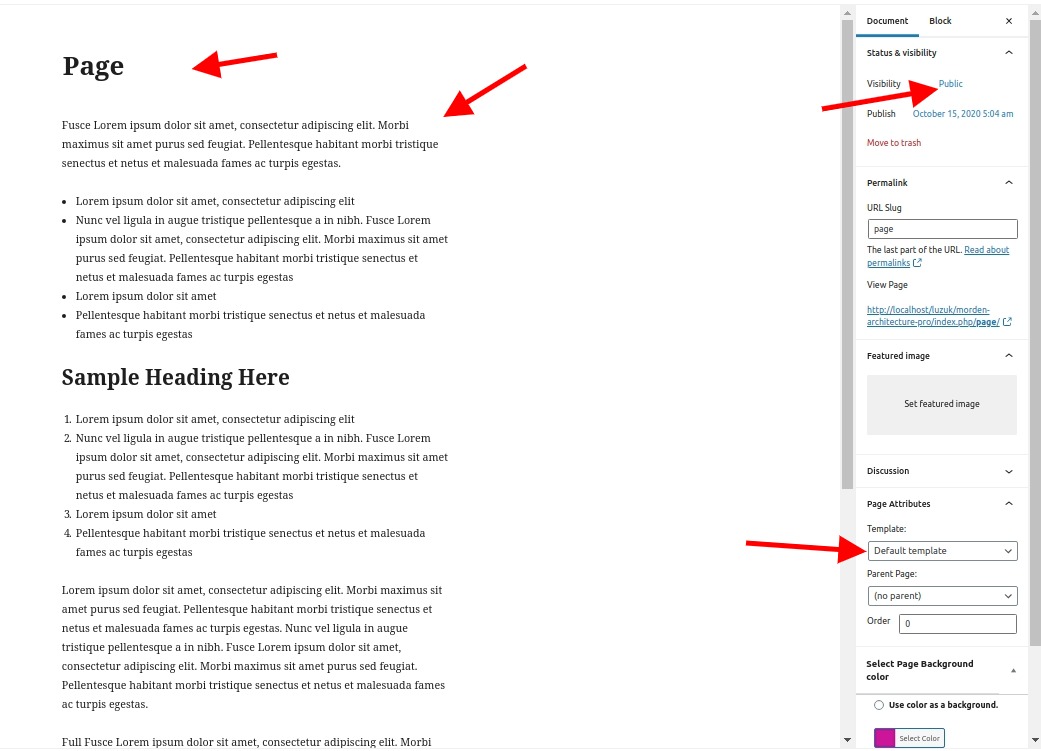
Setting up full width page
- Step 1. Go to Dashboard >> Page
- Step 2. Click Add New button
- Step 3. Select Default template at right bottom of page
- Step 4. Add Title for page
- Step 5. Add Content for page
- Step 6. Click Publish button
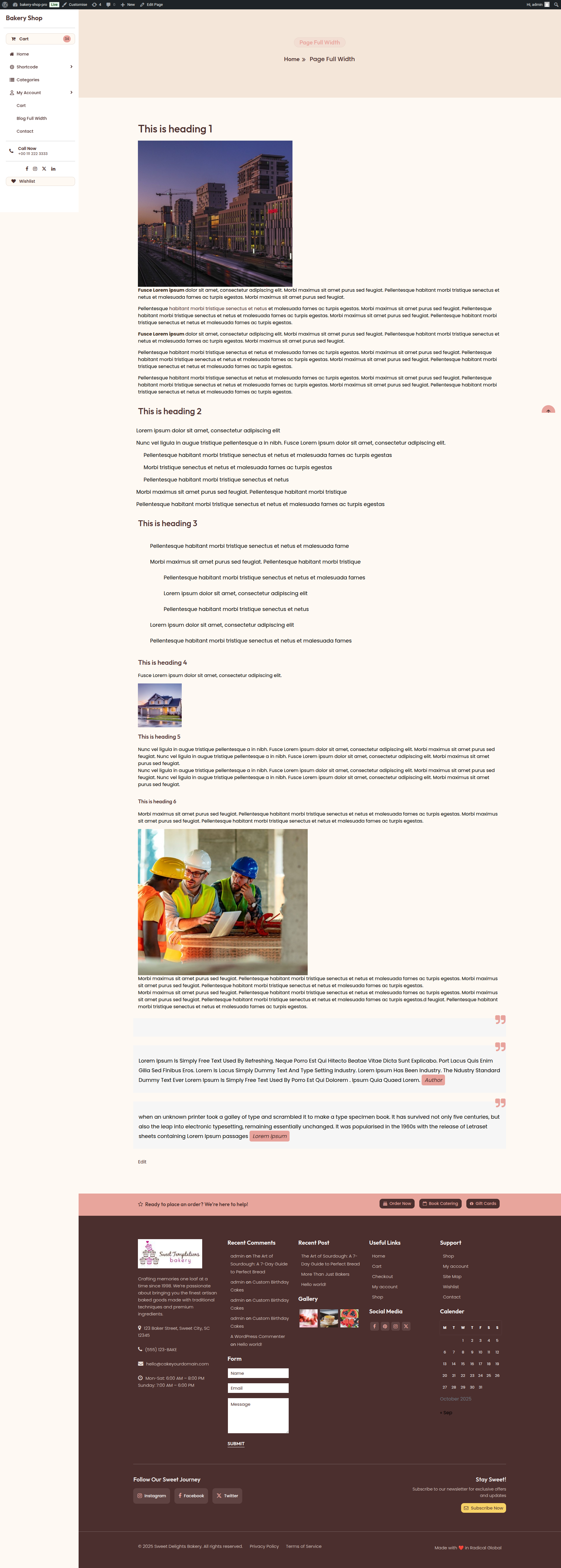
Full Width Inner Page
Set Inner Page Settings
- Step1. Go to Dashboard >> Appearance >> Customizer >> General configuration >> Inner page settings
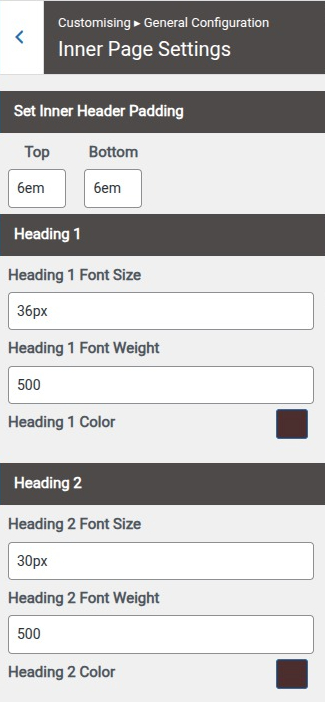
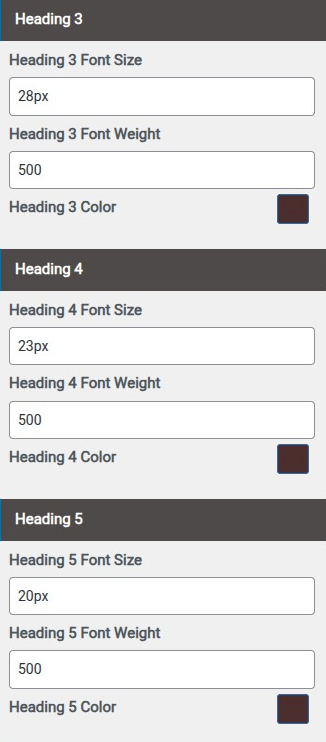
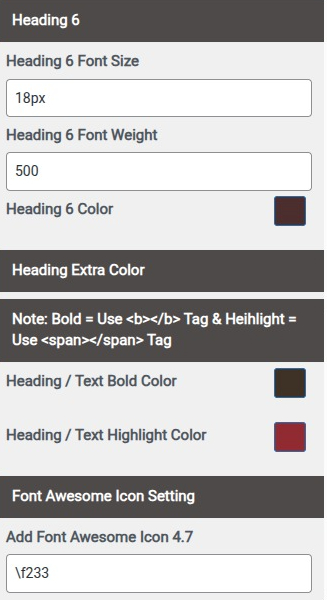
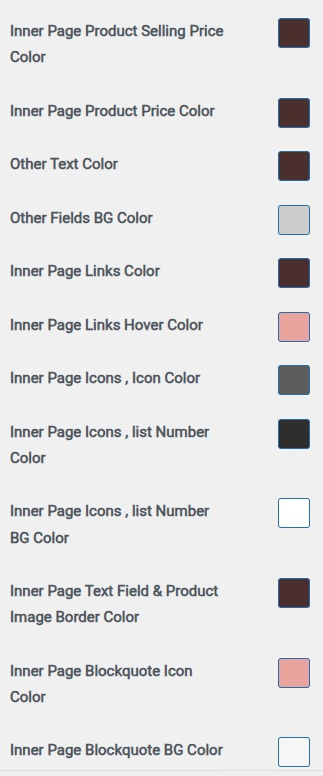
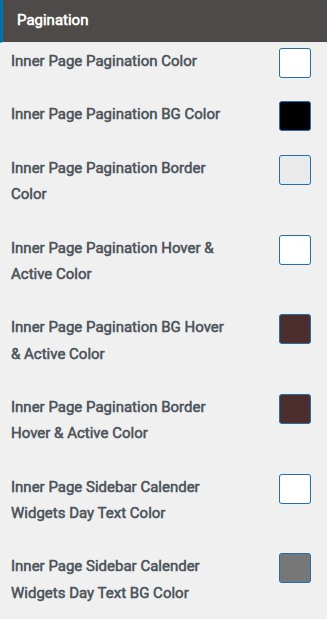
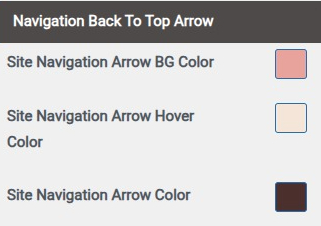
Set Inner Page Colors:
- Step1. Go to Dashboard >> Appearance >> Customizer >> General configuration >> Colors
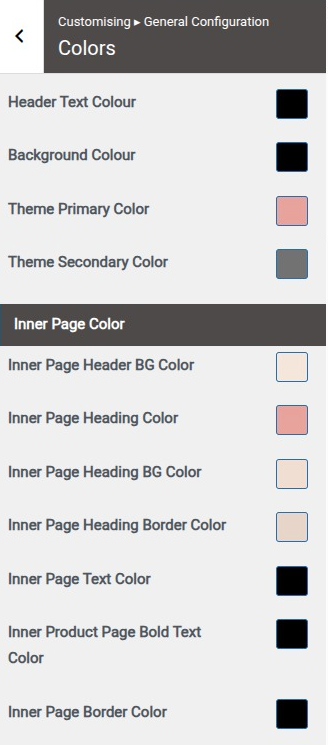
Blog
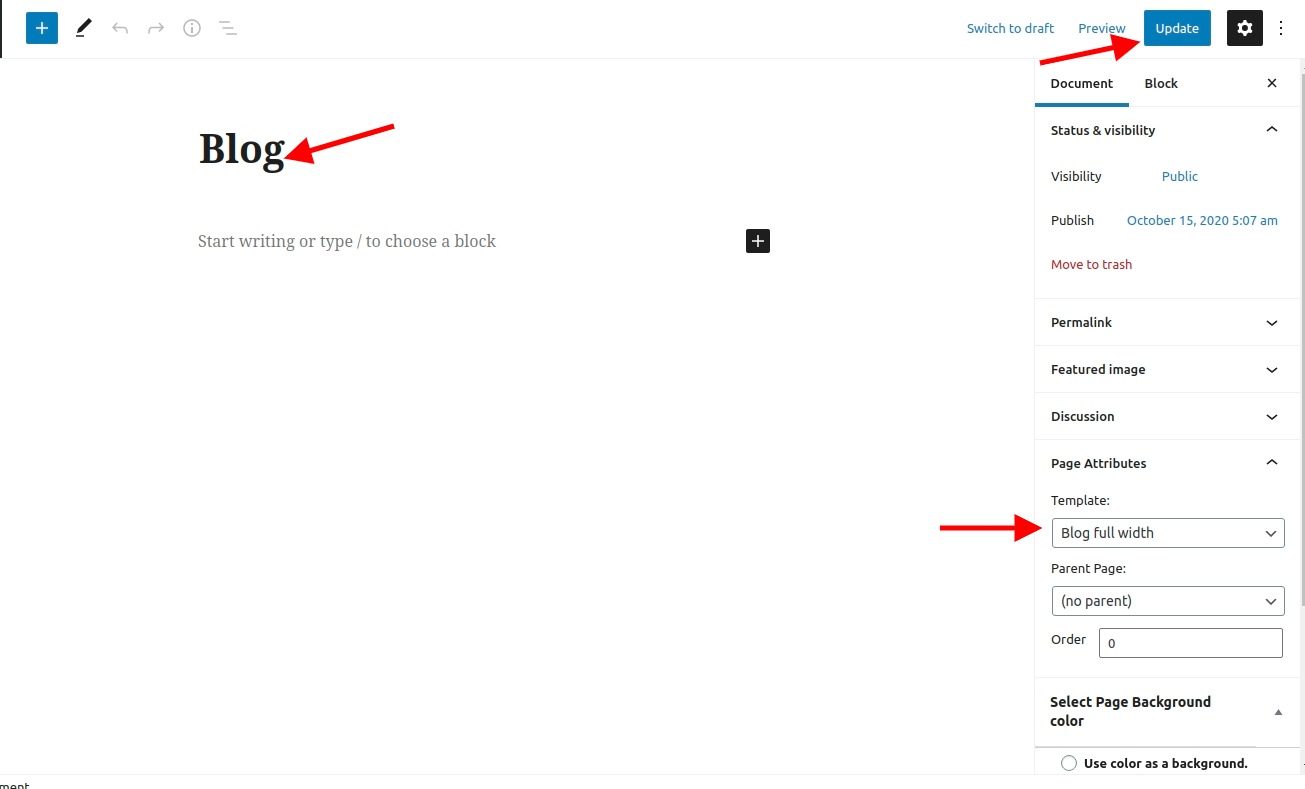
Setting up full width blog
- Step 1. Go to Dashboard >> Page
- Step 2. Click Add New button
- Step 3. Select Blog Full Width template at right bottom of page
- Step 4. Click publish button
Blog Full Width Inner Page

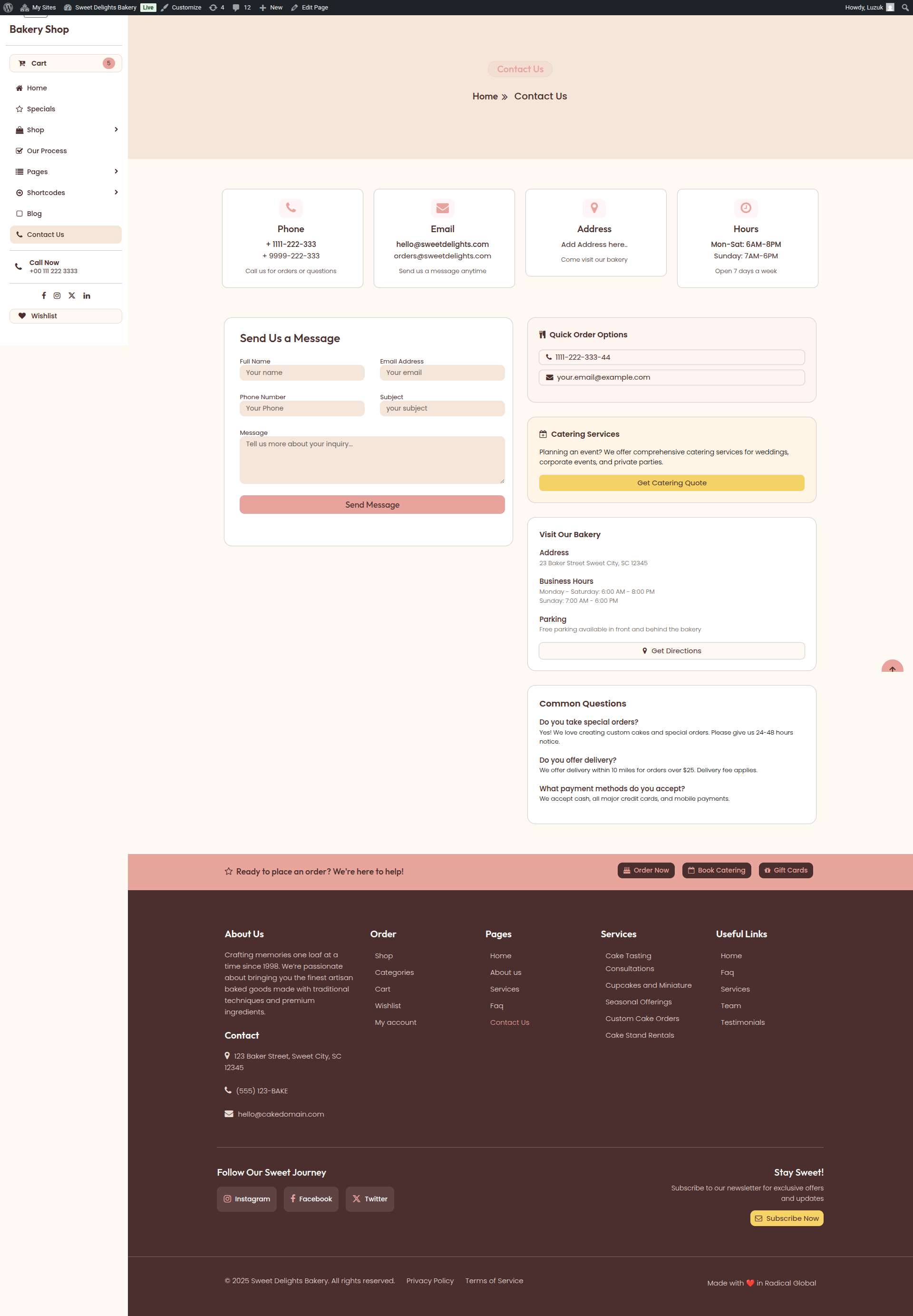
Contact Us
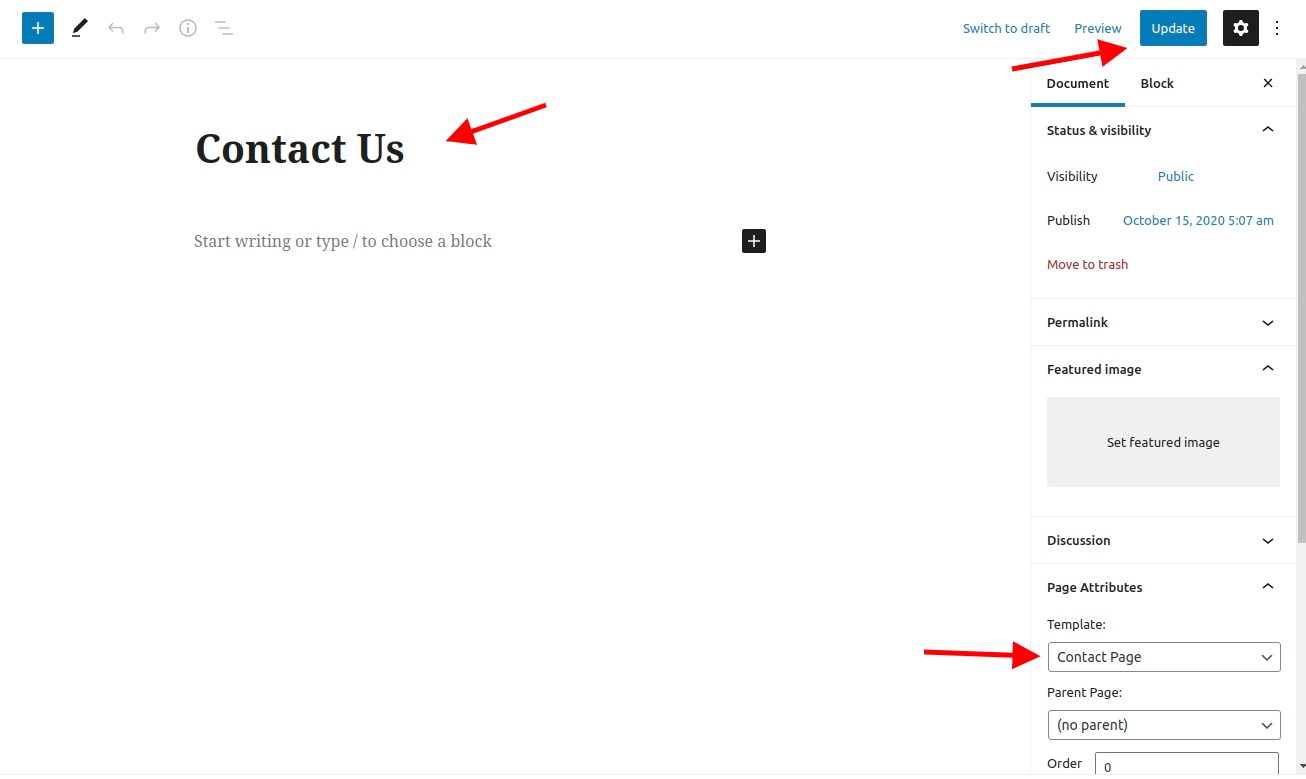
- Step 1. Go to Dashboard >> Page
- Step 2. Click Add New button
- Step 3. Select Contact Page template at right bottom of page
- Step 4. Click publish button
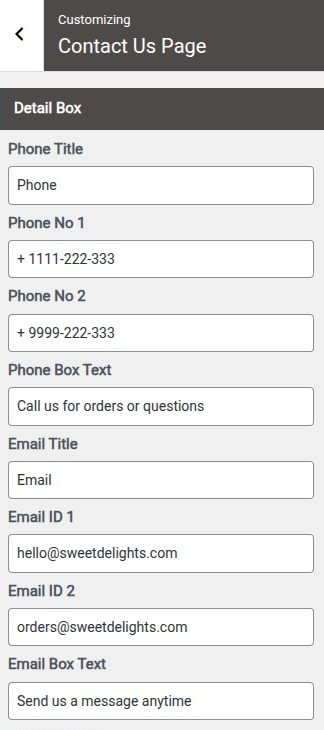
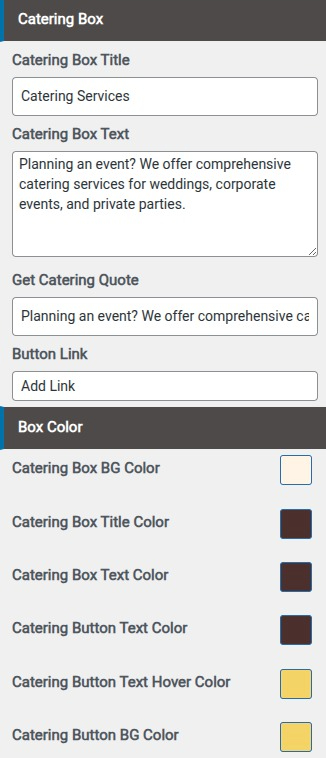
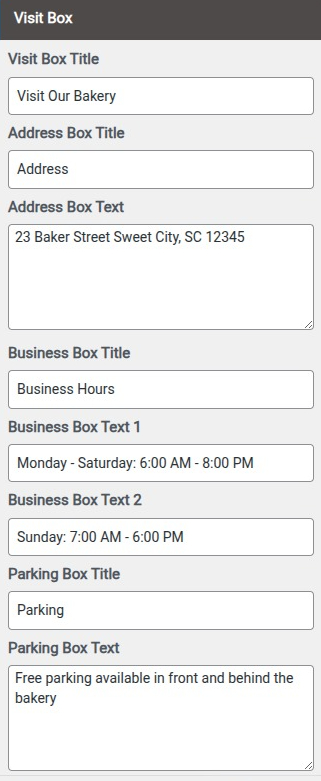
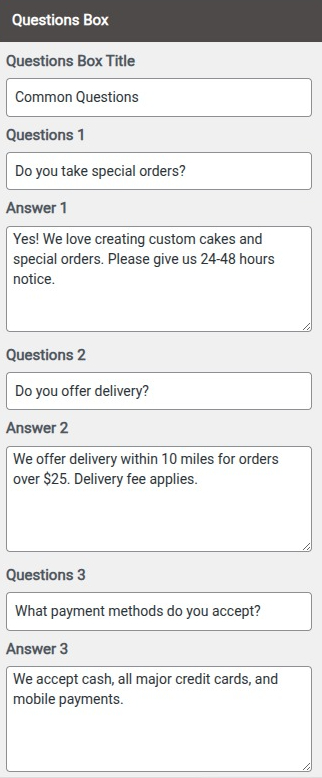
- Step 5. Go to Dashboard >> Appearance >> Customize >> Contact Us Page
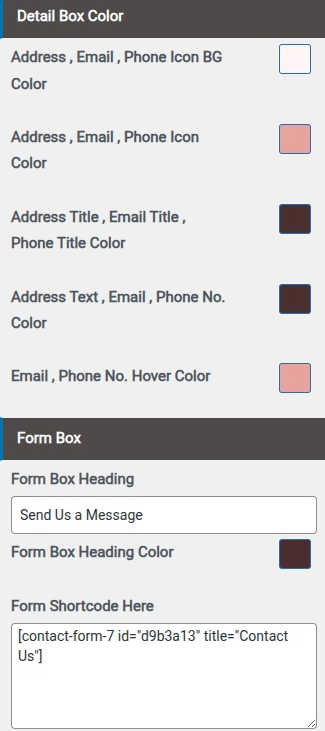
- (a) Add Form Title & Form Shortcode
- Step 6. fill Contact us details
- (1) Add Address Label
- (2) Add Address
- (3) Contact us Email label
- (4) Contact us Email
- (5) Add Contact us Phone Label
- (6) Add Contact us phone no.
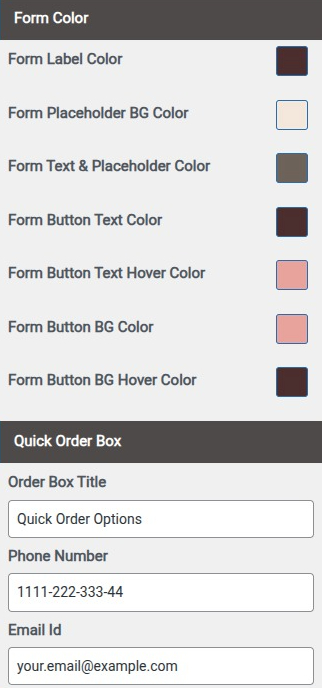
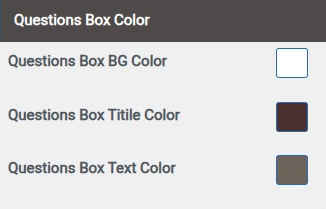
- (7) Select Colors
- (8) Select Colors
Contact Us Inner Page
Shortcodes
Setting Up Team Shortcode
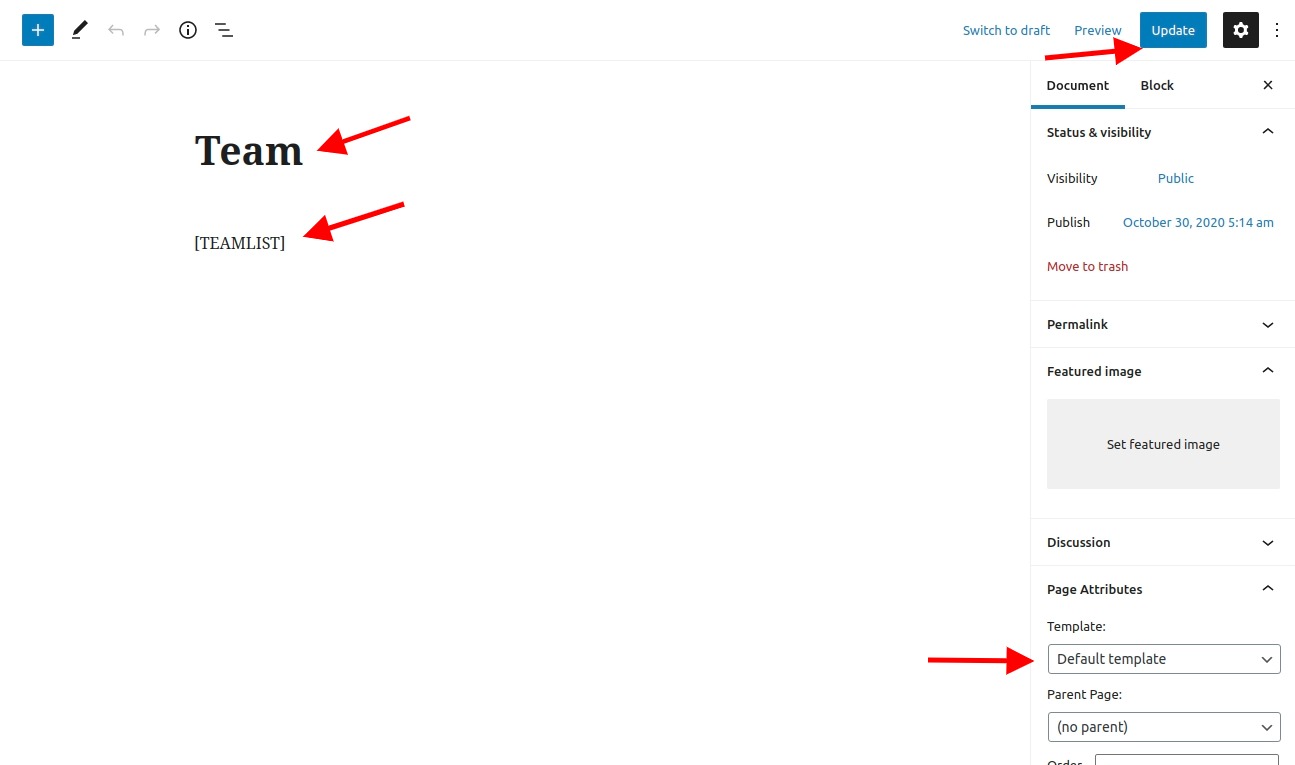
- Step 1. Go to Dashboard >> Page
- (i) Click Add New button
- (ii) Add Team Shortcode "[TEAMLIST]"
- (iii) Select Default template at right bottom of page
- (iv) Click publish button
- Step 2. Used Team shortcode in page
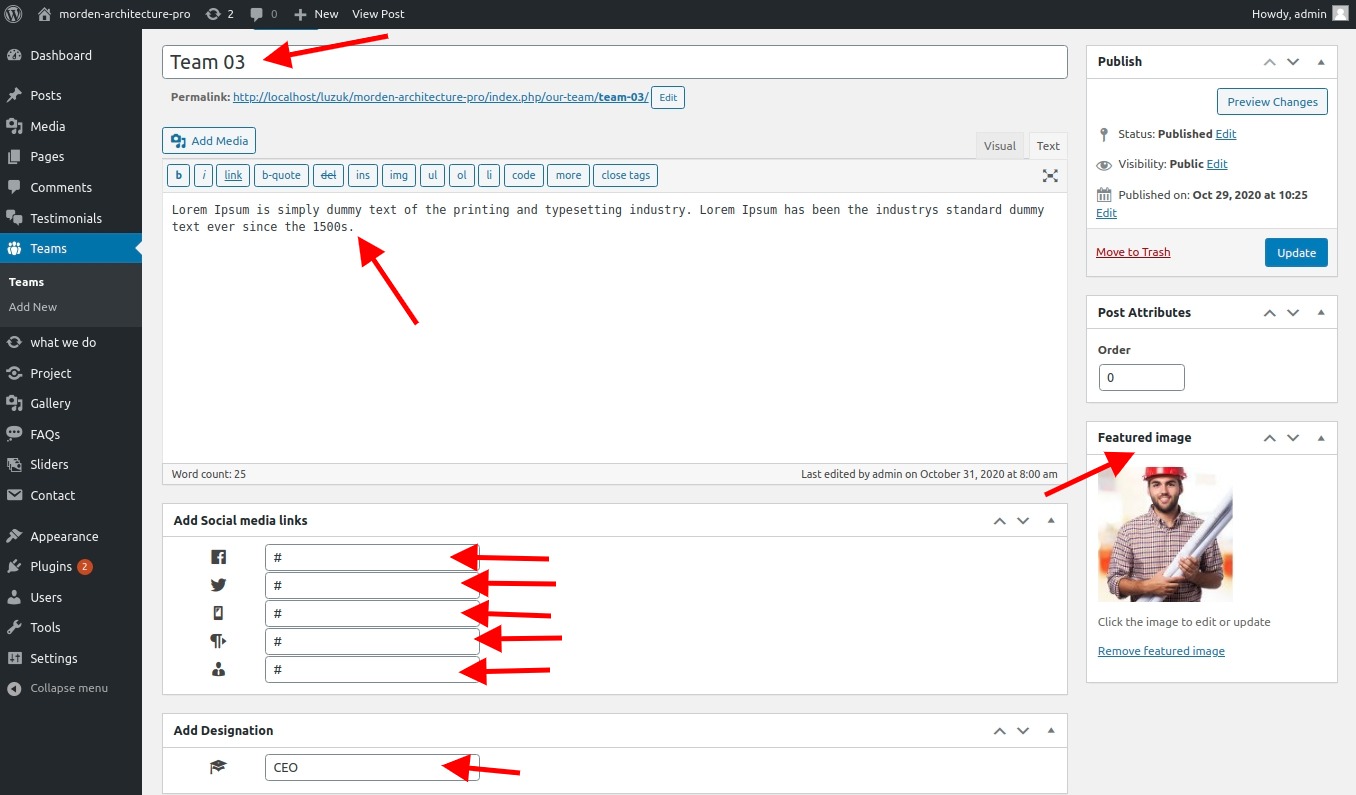
- Step 3. Go to Dashboard >> Teams >> Add New
- 1. Add Member Name
- 2. Add Social Media Links
- 3. Add Designation
- 4. Set Featured Image
- 5. Click On Publish Button
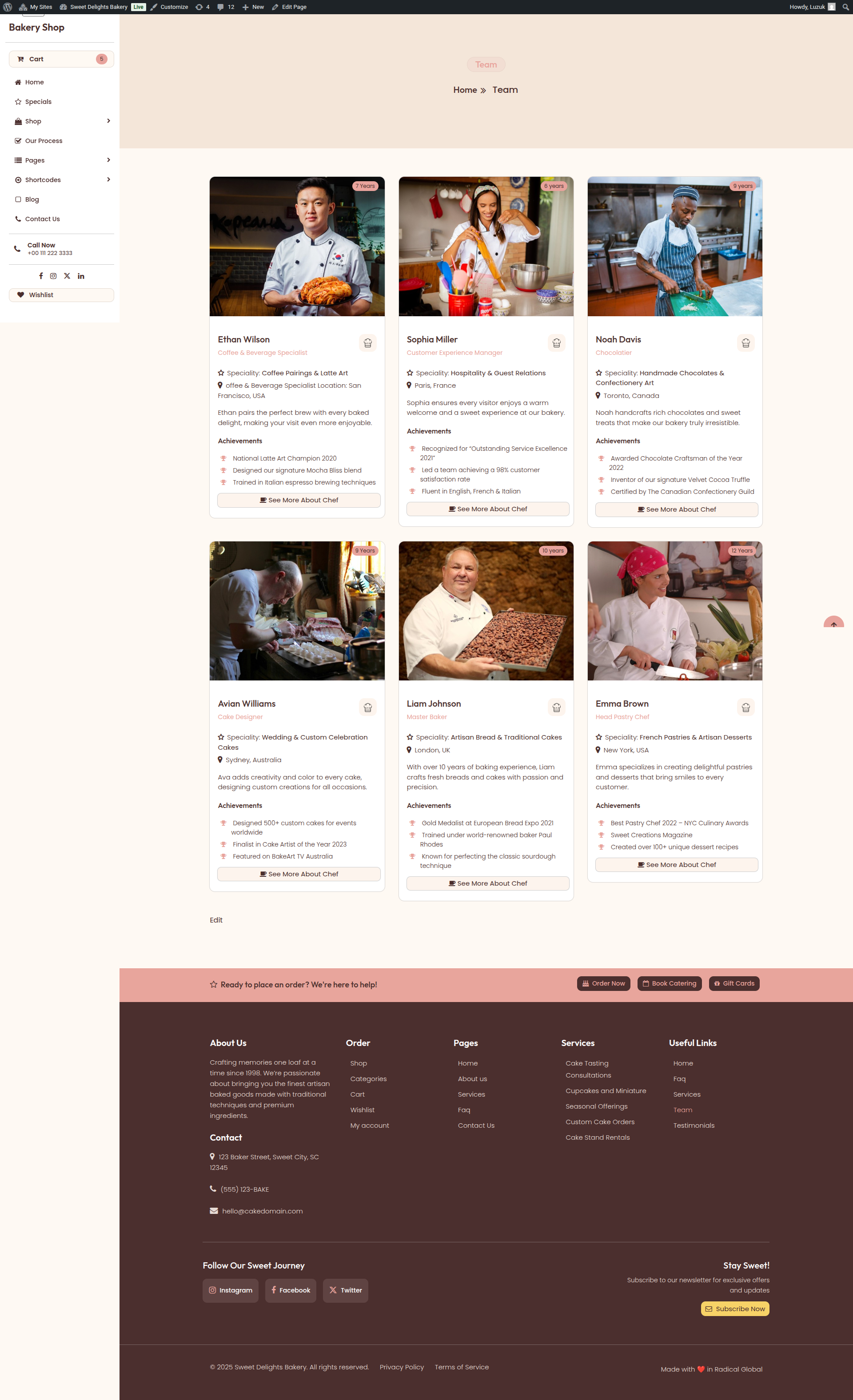
After adding shortcode Team look
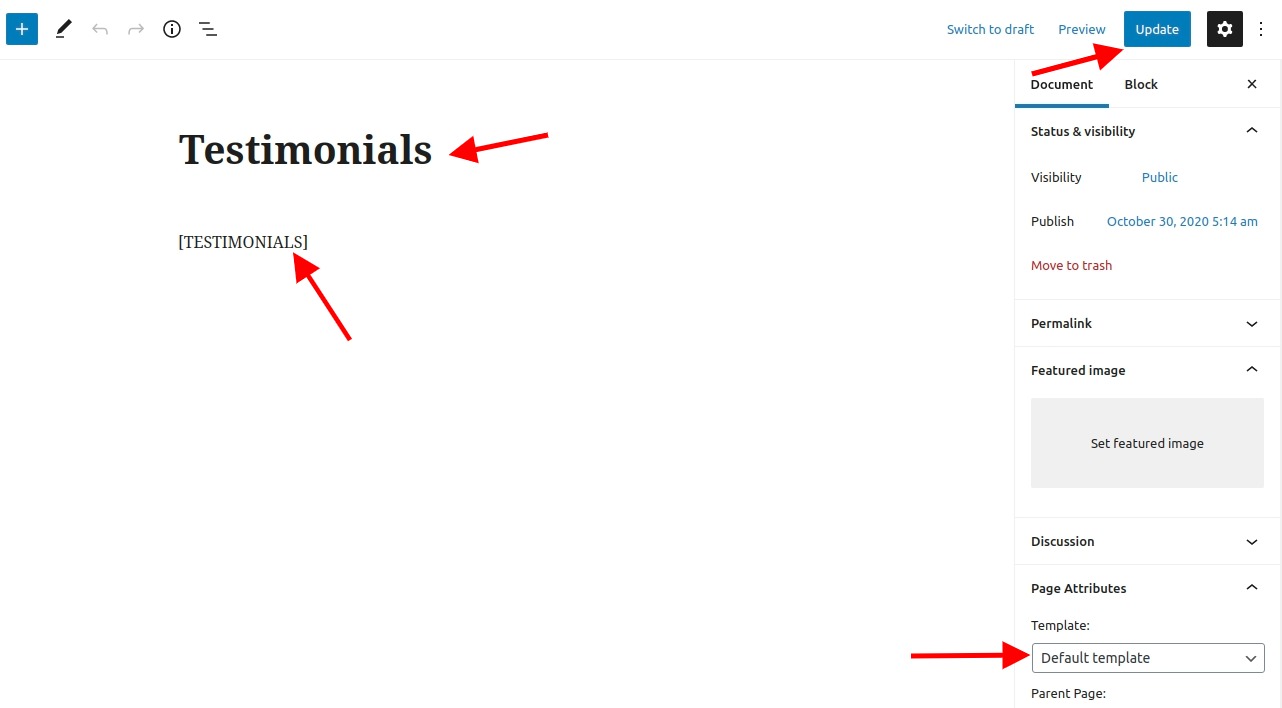
Setting Up Testimonial Shortcode
- Step 1. Go to Dashboard >> Page
- (i) Click Add New button
- (ii) Add Testimonial Shortcode "[TESTIMONIALS]"
- (iii) Select Default template at right bottom of page
- (iv) click publish button
- Step 2. Used Testimonial shortcode in page
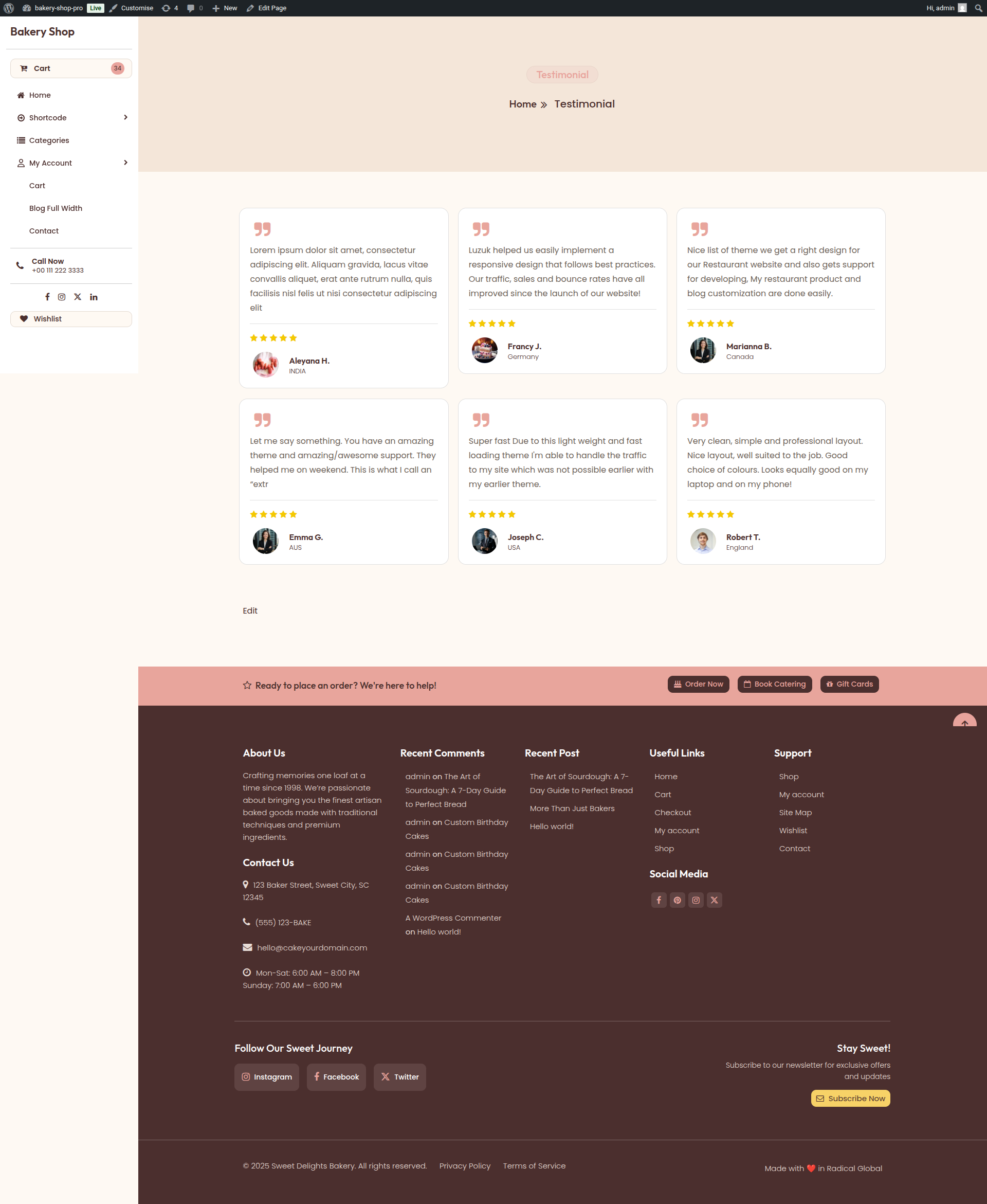
After adding shortcode Testimonial look
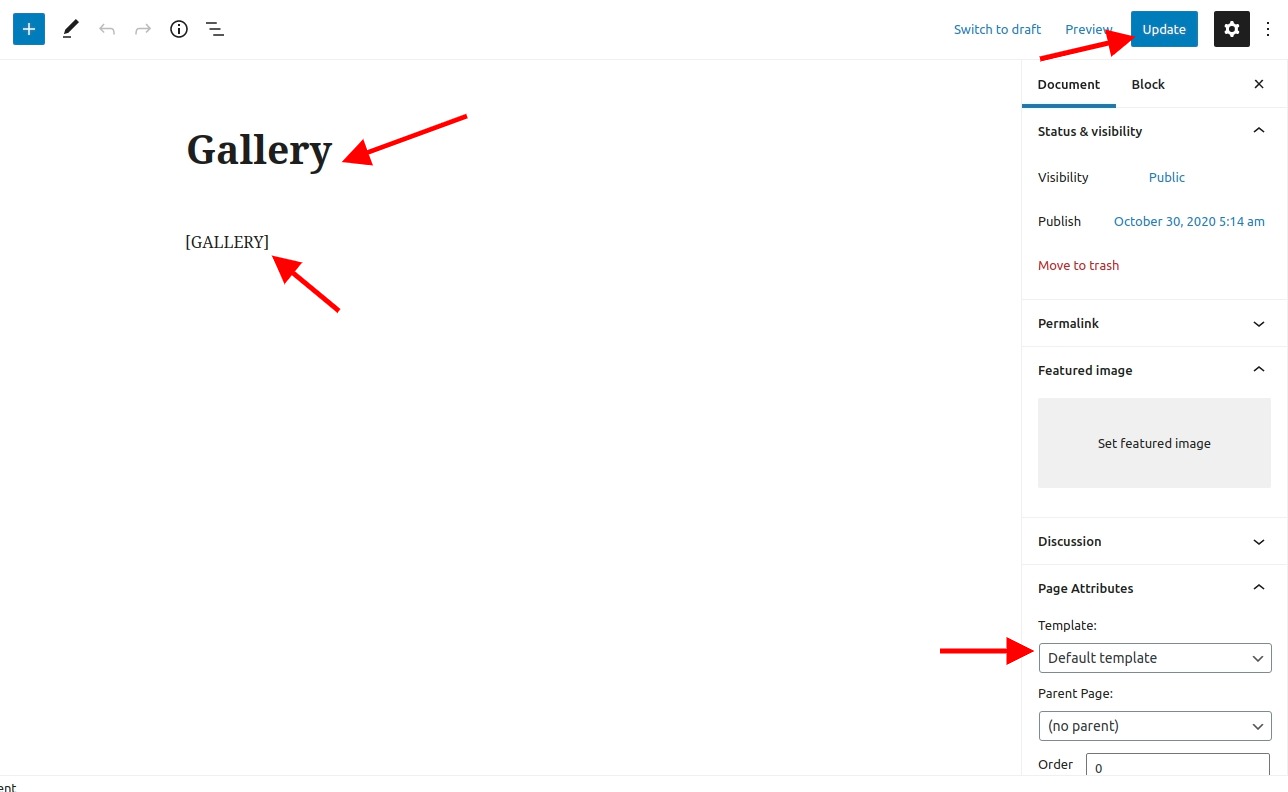
Setting Up Gallery Shortcode
- Step 1. Go to Dashboard >> Page
- (i) Click Add New button
- (ii) Add Gallery Shortcode "[GALLERY]"
- (iii) Select Default template at right bottom of page
- (iv) Click publish button
- Step 2. Used Gallery shortcode in page
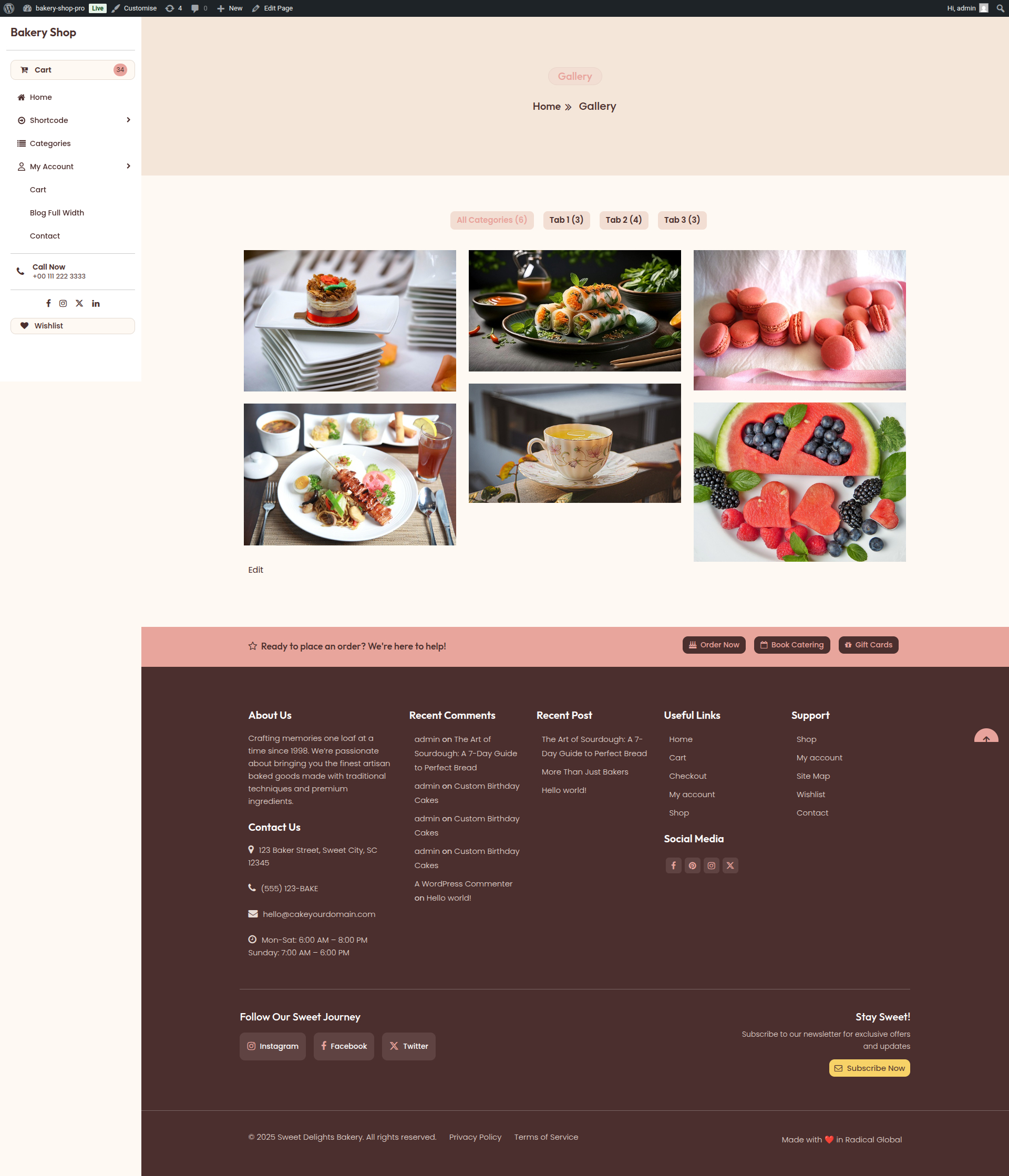
After adding shortcode Gallery look
On Click Of Gallery Image, Gallery look

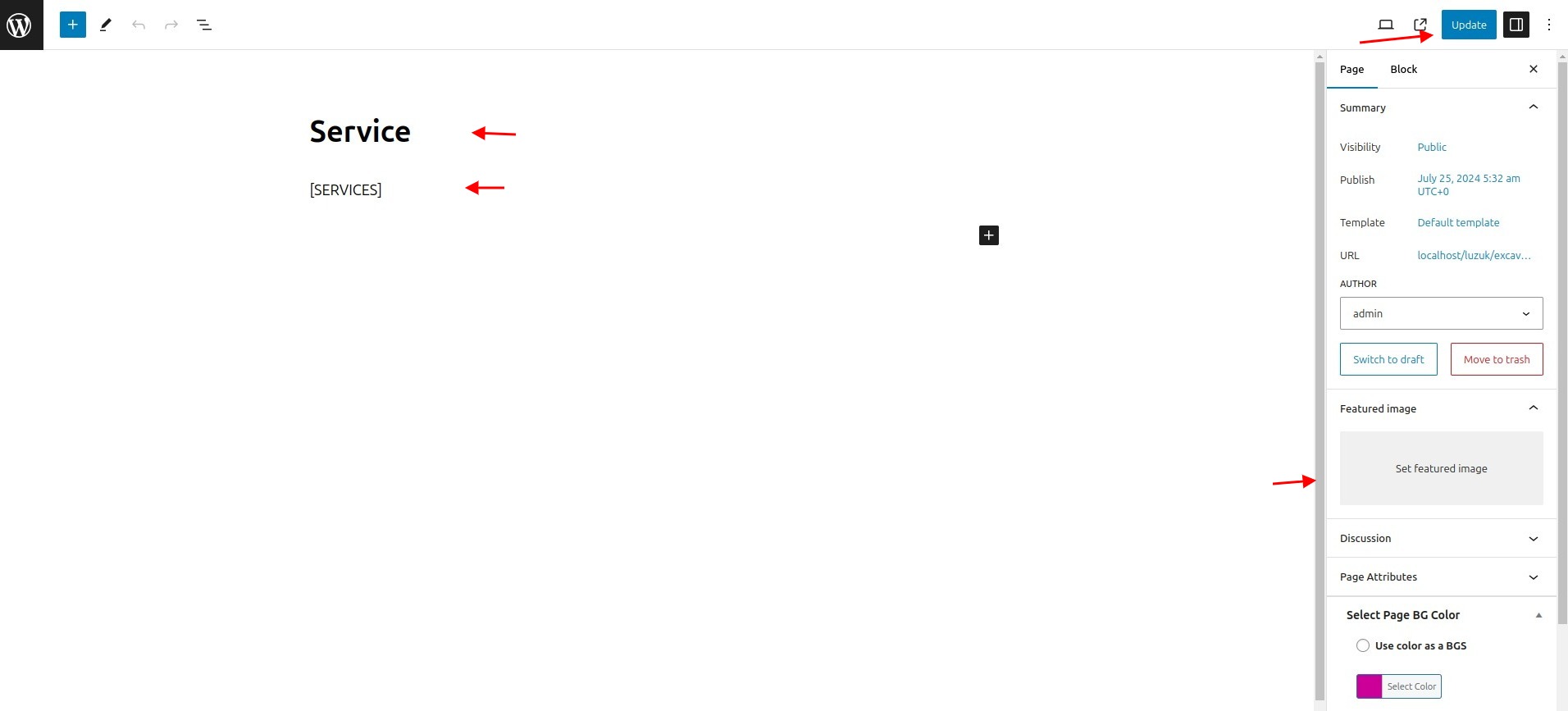
Setting Up Service Shortcode
- Step 1. Go to Dashboard >> Page
- (i) Click Add New button
- (ii) Add Service Shortcode "[WHATWEDO]"
- (iii) Select Default template at right bottom of page
- (iv) click publish button
- Step 2. Used Service shortcode in page
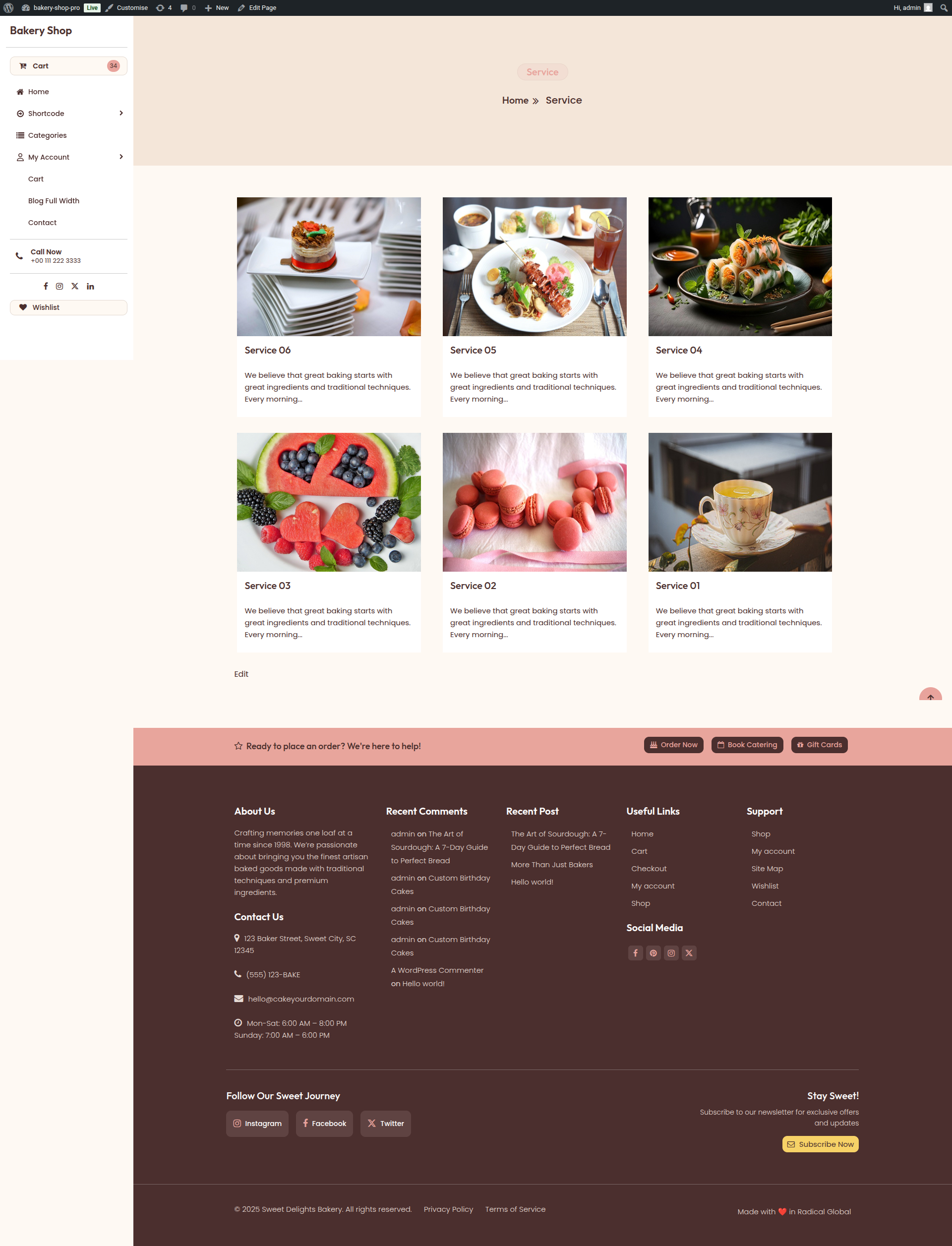
After adding shortcode Service look
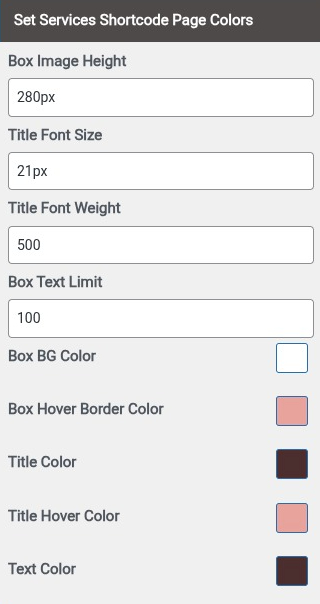
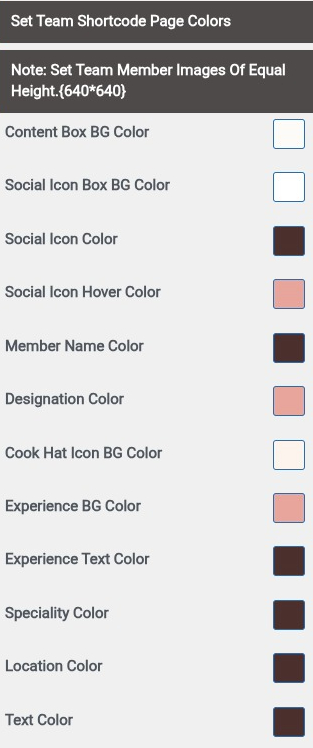
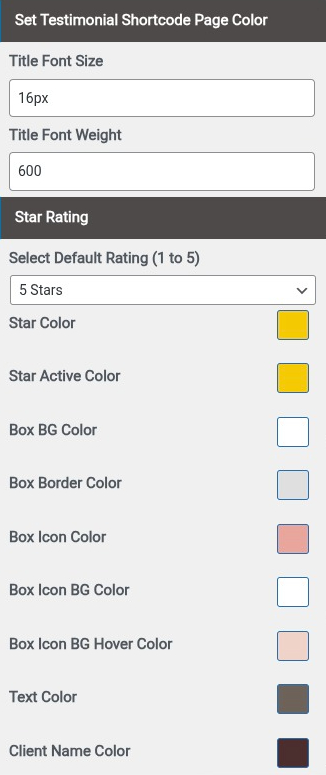
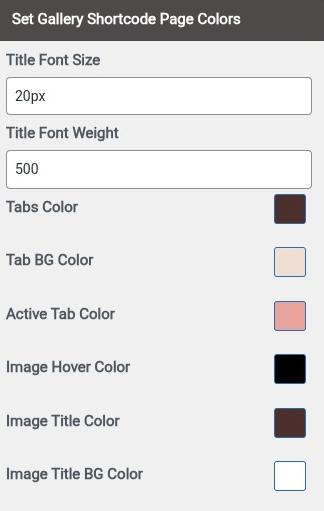
Set all Shortcode Page Colors
- Step1. Go to Dashboard >> Appearance >> Customizer >> General configuration >> Color Setting for shortcode pages